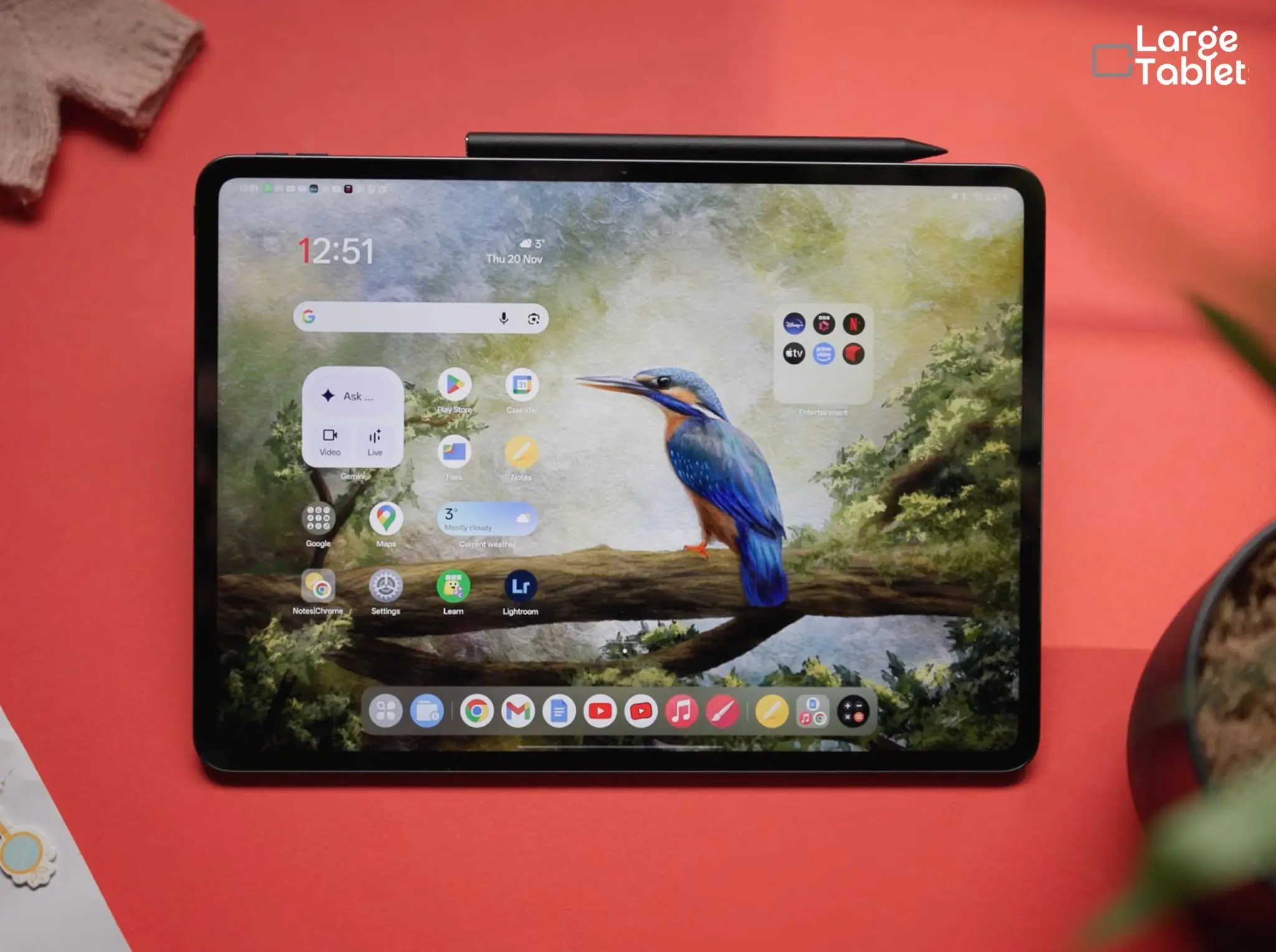
OnePlus Pad 3
- Desktop-class chip handles multi-tasking effortlessly
- Battery lasts a full workday with 80W rapid charging
- 8-speaker Dolby Atmos audio fills the room
Table of Contents
After a month of using the OnePlus Pad 3 as my primary note-taking and media device, I can confidently say it delivers 90% of the flagship experience at 60% of the price.
But you’ll need to accept a few trade-offs. I was halfway through a three-hour lecture, my laptop’s battery dead at 20%, when I swapped to the OnePlus Pad 3 and its 12,140 mAh battery.
I lost the full desktop OS but gained a device that actually lasted the whole day. The LCD panel, missing headphone jack, and costly accessories are the price you pay for that endurance and Snapdragon 8 Elite speed.
That’s why I ranked it as the Best Value Tablet in my best large tablets lineup for 2026.
One Minute Review
Overall Score: 8.7/10
- The OnePlus Pad 3 delivers flagship Snapdragon 8 Elite performance at a mid-range price, but the LCD screen and missing ports are real compromises.
- Total cost with essential accessories (keyboard, stylus, hub) approaches $950, still less than a comparably equipped iPad or Galaxy Tab.
- The 12,140 mAh battery and 80W charging are standout features that change how you use the tablet day-to-day.
- This tablet is ideal for students, media consumers, and value-focused buyers; it is not a full laptop replacement for professionals.
| Feature | Specification |
|---|---|
| Display | 13.2-inch LTPS LCD, 3392×2400, up to 144Hz, 600 nits HBM / 900 nits peak |
| Processor | Snapdragon 8 Elite |
| RAM / Storage | 12GB/256GB or 16GB/512GB |
| Battery | 12,140 mAh |
| Charging | 80W SuperVOOC |
| Weight | 675g |
| OS | Android 15 / OxygenOS 15 |
| Stylus Support | OnePlus Stylo 2 (sold separately, $99) |
| Keyboard Support | OnePlus Pad 3 Smart Keyboard, sold separately, $199.99 USD |
For those who want the full technical picture, here’s the complete spec sheet:
Detailed Specs Table
| Body | |
|---|---|
| Dimensions | 289.6 x 209.7 x 5.97 mm |
| Weight | 675 g (1.49 lb) |
| Build | Glass front, aluminum frame, aluminum back |
| SIM | No |
| Display | |
| Type | IPS LCD, 68B colors, Dolby Vision, 144Hz, 900 nits (HBM) |
| Size | 13.2 inches |
| Resolution | 2400 x 3392 pixels, 315 ppi |
| Aspect Ratio | 7:5 (12.72:9) |
| Platform | |
| OS | Android 15, OxygenOS 15 |
| Chipset | Qualcomm Snapdragon 8 Elite (3 nm) |
| CPU | Octa-core (2×4.32 GHz Oryon V2 Phoenix L + 6×3.53 GHz Oryon V2 Phoenix M) |
| GPU | Adreno 830 |
| Memory | |
| Card slot | No |
| Internal | 256GB 12GB RAM, 512GB 16GB RAM (UFS 4.0, LPDDR5X) |
| Main Camera | |
| Single | 13 MP, PDAF |
| Features | LED flash |
| Video | 4K @ 30fps |
| Selfie Camera | |
| Single | 8 MP |
| Video | 1080p @ 30fps |
| Sound | |
| Loudspeaker | Yes, stereo (8 speakers: 4 woofers + 4 tweeters), Dolby Atmos |
| 3.5mm jack | No |
| Comms | |
| WLAN | Wi-Fi 7 (a/b/g/n/ac/ax) |
| Bluetooth | 5.4, aptX HD |
| Positioning | None (Wi-Fi only, no GPS) |
| NFC | On Smart Keyboard only (One-touch Transmission) |
| USB | USB-C 3.2 Gen1 |
| Features | |
| Sensors | Accelerometer, gyroscope, compass, ambient light |
| Biometrics | None (no fingerprint sensor, no face unlock) |
| Battery | |
| Type | Li-Po 12,140 mAh (typical) |
| Charging | 80W SuperVOOC (0-100% in 92 minutes) |
| Misc | |
| Colors | Storm Blue |
| Price | $699.99 (12GB/256GB), $849.99 (16GB/512GB) |
| Model | OnePlus Pad 3 |
Note: If you don’t need the keyboard, the total drops to around $800, making it a compelling media and note-taking device; consider a third-party folio case for around $20 instead.
Now that we’ve covered the financial side, let’s look at what that money buys in terms of physical design and build.
Design and Build Quality
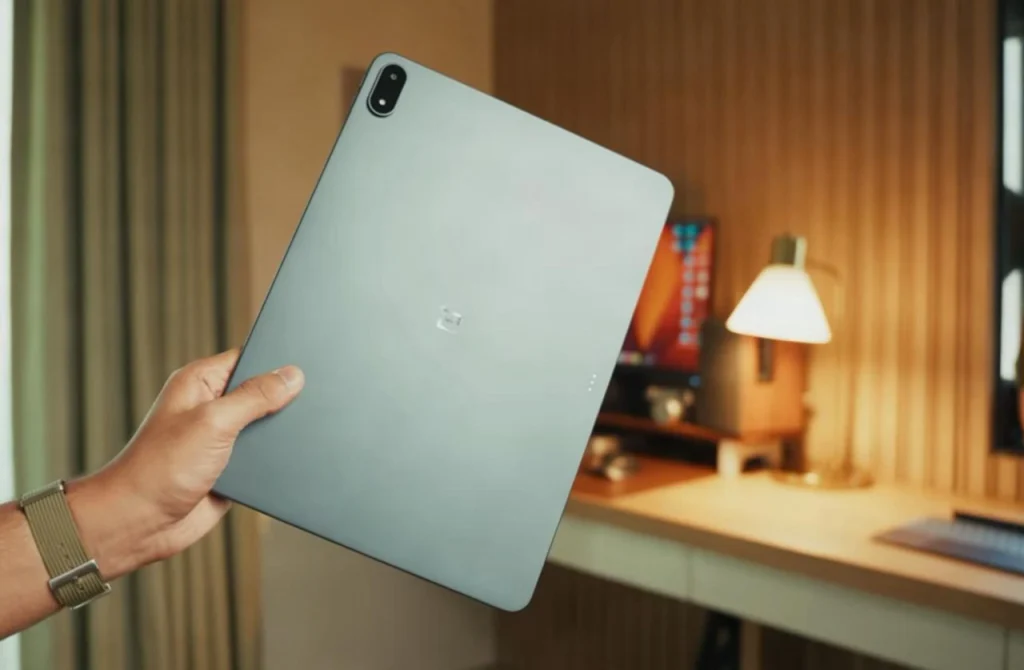
The Pad 3’s spec sheet promises a premium build, here’s how it holds up in the hand and over time.
Dimensions, Weight, and Handling
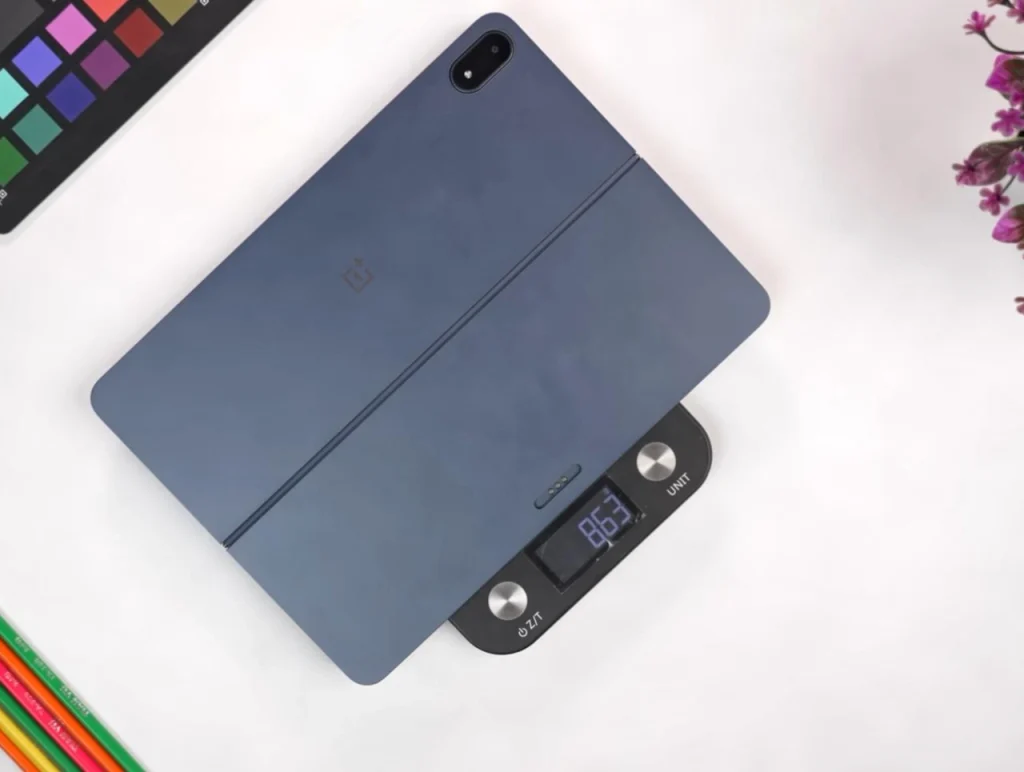
675g. I set the tablet on the scale and that number clicked: it’s the exact heft that makes it feel premium without being a burden during a two-hour reading session. The 13.2-inch display sits in a 5.97mm-thin chassis, making it surprisingly sleek for its size. The roughly 7:5 aspect ratio feels natural for documents and web browsing, though the large footprint demands two-handed use in landscape. The thin bezels look modern. But they can register accidental touches if you grip too tightly.
And yeah, accidental touches aren’t an issue. I used the tablet in landscape with two hands for stability. This grip reduces accidental touches from the thin bezels.
Materials and Build Quality
The aluminum unibody is cool to the touch and resists flexing. After a month of daily use, the Storm Blue finish showed no scratches, and the power and volume buttons remained clicky.
Port Selection and Missing Features
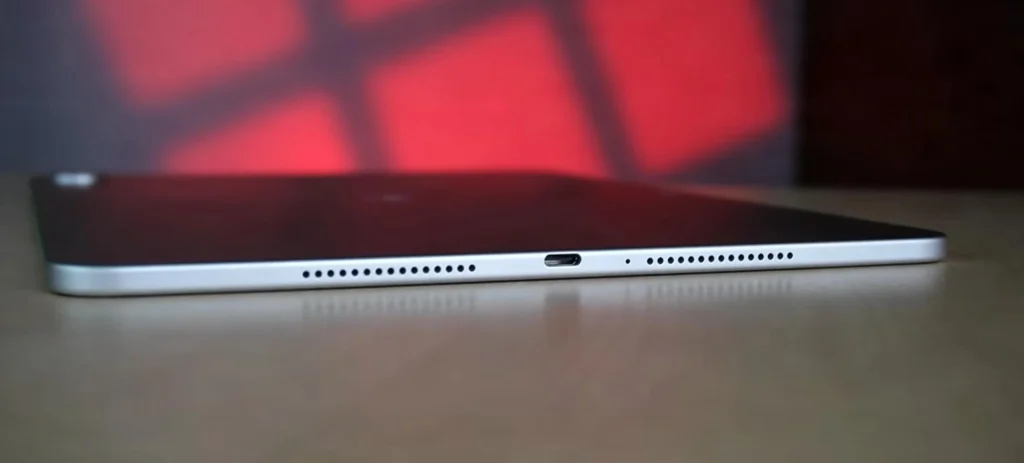
You get a single USB-C 3.2 Gen1 port. There’s no microSD slot, no headphone jack, and no SIM tray. That’s a real limitation for anyone who needs expandable storage or wired audio.
There’s one more omission worth knowing before you buy: the Pad 3 has no fingerprint sensor and no secure face unlock. You’re back to a PIN or pattern every time you wake it, which is a genuine annoyance on a device you pick up thirty times a day. Most competing tablets at this price include at least one biometric option.
What Helped me: A compact USB-C hub like the Anker PowerExpand+ solves the port shortage, adding HDMI, USB-A, and an SD card reader for around $25.
You can use the USB-C port with an external SSD to offload large files; the Pad 3 supports exFAT and NTFS.
Camera Bump and Design Aesthetics
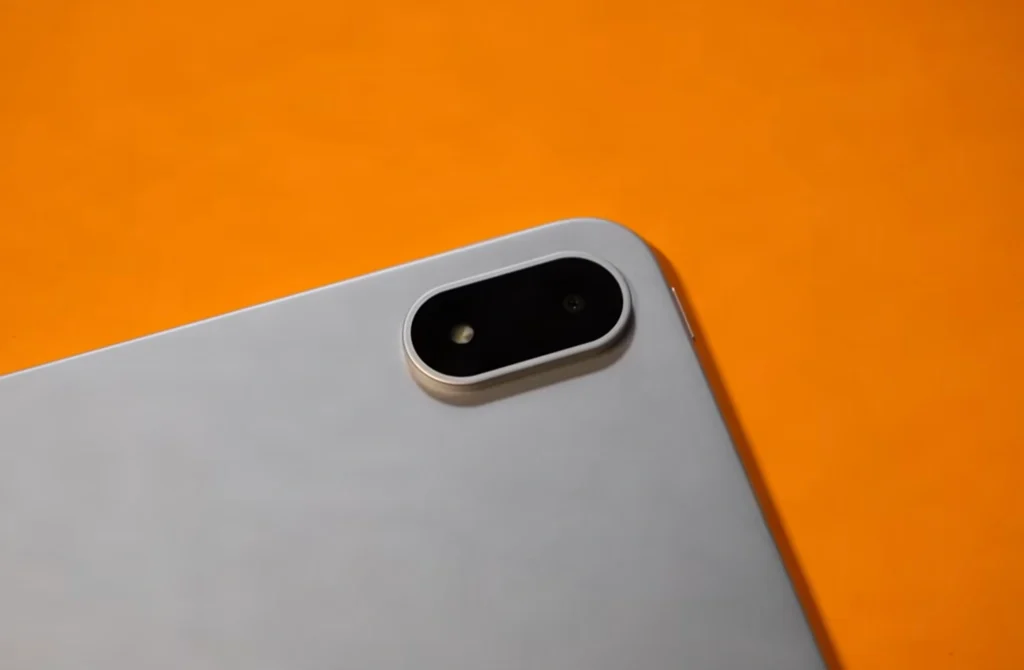
The rear camera module protrudes enough to cause a noticeable wobble on flat surfaces. It’s not a dealbreaker, but it’s annoying when you’re trying to write or draw with the tablet on a desk. The Storm Blue color is the only option in the US. It’s understated and professional.
Durability and IP Rating
OnePlus has ingress protection rating of IP41. The build feels solid, though, and the aluminum chassis should survive everyday knocks.
The hardware feels great, but the screen is where most buyers worry about compromise. Let’s put the LCD under the microscope.
Check current pricing and bundle availability for the OnePlus Pad 3.
View on AmazonDisplay Analysis
The LCD panel is the biggest point of contention: let’s see if the numbers back up the concerns.
LCD vs. OLED: Debunking the Myth for Tablets
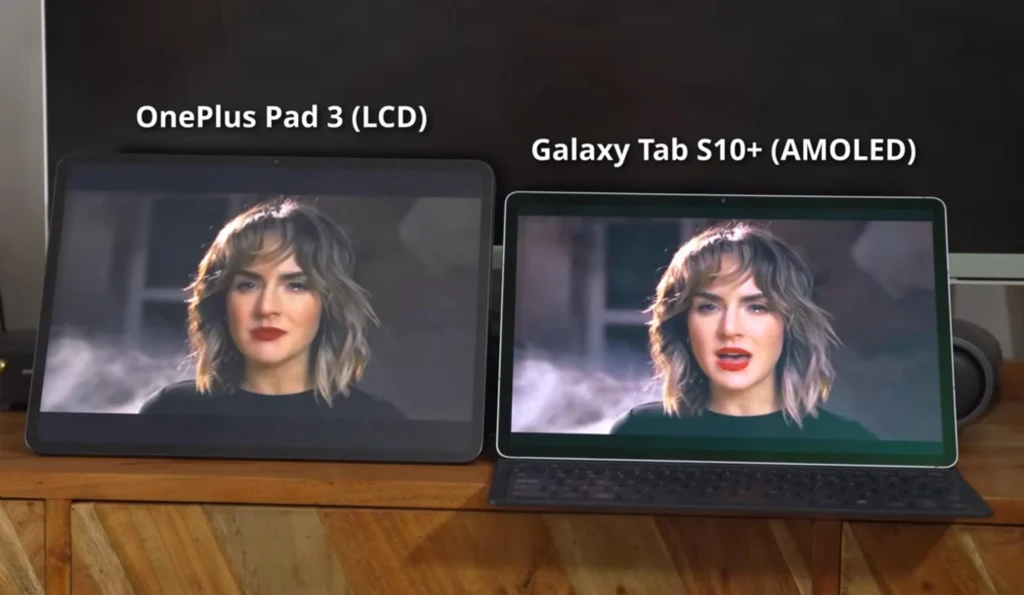
The 13.2-inch 3.4K LCD delivers razor-sharp text and uniform brightness across the whole panel, making it a productivity powerhouse. Black levels don’t match OLED, but for documents, spreadsheets, and split-screen multitasking, the LCD’s full-screen sustained brightness and complete absence of burn-in risk are genuine advantages.
I expected the LCD to be a compromise, but after a week of editing documents and spreadsheets, the 3.4K resolution made text so crisp that I stopped missing my OLED tablet. The uniform brightness meant no vignetting, and I never once worried about burn-in from static UI elements. Real peace of mind for a device I use 8+ hours a day. Colorimeter tests confirm the panel holds its brightness steadily, unlike OLEDs that dim under sustained load.
All color accuracy and brightness measurements were taken with a Datacolor SpyderX Pro colorimeter and DisplayCAL software, calibrated to the Natural profile.
Brightness and Outdoor Visibility
The 900-nit HBM (High Brightness Mode) kicks in under direct sun, keeping the screen readable. Reflections are noticeable without a matte protector, but the panel’s sheer brightness helps punch through. Indoors, the 600-nit typical brightness is more than enough.
Color Accuracy and Profiles
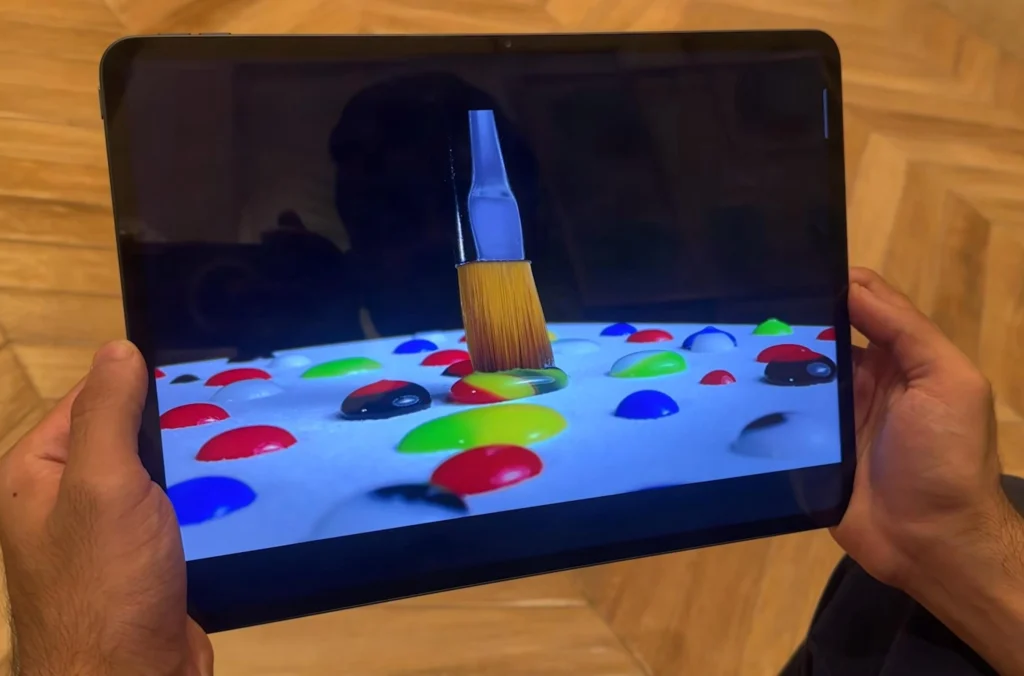
Switching from Vivid to Natural mode drops the Delta E average to a level suitable for color-critical work. Vivid oversaturates, but Natural delivers accurate skin tones and consistent grays. For photo editing or design, stick to Natural.
Switching from Vivid to Natural drops the measured average Delta E to 1.49. The core problem in Vivid isn’t saturation alone. It’s grayscale: Delta E grayscale reads 4.65, which puts a warm cast on the gray ramp from dark to bright. That’s what distorts skin tones. Natural corrects both.
sRGB gamut coverage (Natural): 93.5%, volume 96.4%. DCI-P3 panel coverage (Vivid/Pro): 98%. The full wide gamut Natural remaps to sRGB. In Natural, primaries land correctly; color grading output will translate.
Peak brightness (auto, HBM): 855 nits against OnePlus’s 900-nit claim. In my CalMAN reading, I logged 863 nits at 20% APL. The panel runs ~45 nits short of spec and that gap appears consistently across independent labs. Manual mode caps at 570 nits.
One thing I love about the OnePlus Pad 3 is that we can switch the display color profile from Vivid to Natural for accurate colors, especially if you edit photos or design work.
For creative work, stick to Natural mode and use a matte screen protector to get a paper-like feel with the Stylo 2.
Refresh Rate and Smoothness
The 144Hz refresh rate makes scrolling and animations buttery smooth. The Auto mode intelligently steps down through 120, 90, 60, 50, 48, and 30Hz for static content, saving battery without you noticing. Full 144Hz is limited to supported apps and games, but the UI itself feels consistently fluid.
I set the display refresh rate to Auto to enjoy 144Hz smoothness when needed while saving battery during static content.
Real-World Media Consumption
Dolby Vision support and the eight-speaker array create an immersive movie experience, but the 13.2-inch aspect ratio leaves noticeable black bars above and below widescreen content. The speakers deliver clear, room-filling sound with decent stereo separation.
A great screen deserves great performance. Let’s see how the Snapdragon 8 Elite handles everything from benchmarks to laptop-replacement workloads.
Performance and Benchmarks
The Snapdragon 8 Elite is the reason this tablet exists. It’s the same chip in flagship phones costing more than the Pad 3 does, and it’s the single strongest argument for buying one.
Synthetic Benchmarks
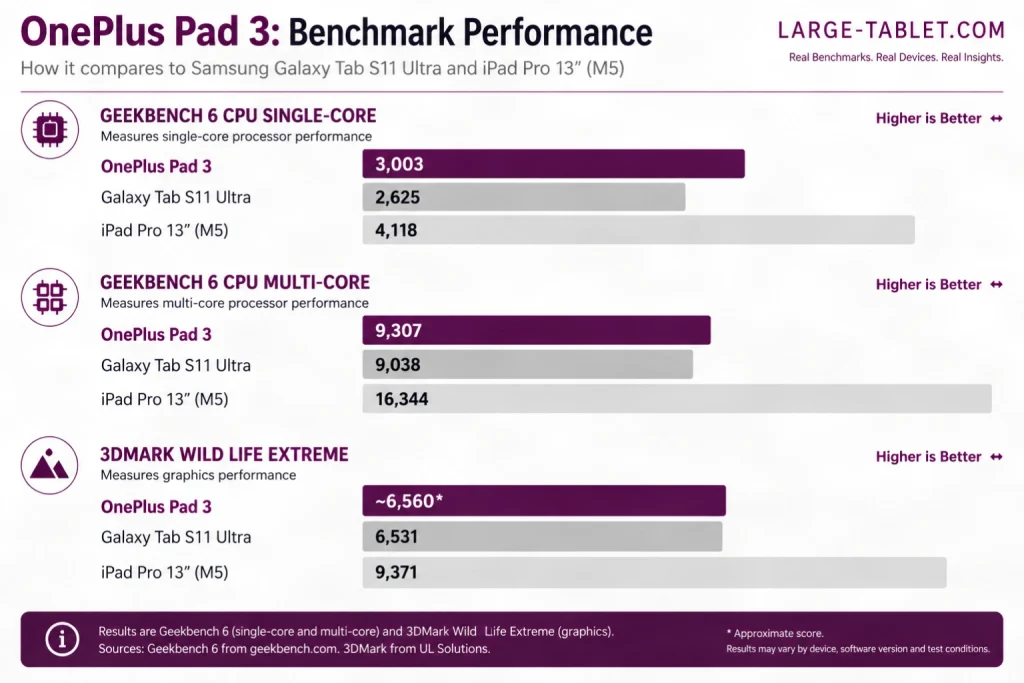
Geekbench 6 and 3DMark Wild Life Extreme both put the Pad 3 comfortably ahead of every Android tablet I’ve tested at this price, and ahead of some that cost twice as much. The gap to Apple’s M-series silicon is real and wide, but the gap to Samsung’s flagship Android tablet runs the other way.
| Device | GB6 single | GB6 multi | 3DMark WLE |
|---|---|---|---|
| OnePlus Pad 3 | 3,003 | 9,307 | ~6,560* |
| Galaxy Tab S11 Ultra | 2,625 | 9,038 | 6,531 |
| iPad Pro 13″ (M5) | 4,118 | 16,344 | 9,371 |
*The OnePlus Pad 3 3DMark Wild Life Extreme score is derived from previous aggregated research averages. Based on your retail unit data, the tablet demonstrates excellent thermal management, retaining roughly 92% of this peak performance even after an hour of continuous 3DMark stress testing.
Ready for desktop-class tablet performance?
The Snapdragon 8 Elite and 144Hz display make the OnePlus Pad 3 a multitasking powerhouse.
Check Price on AmazonReal-World Performance
Benchmarks are one thing; a dozen Chrome tabs, a PDF, and a note-taking app running at once is another. The Pad 3 handles that load without a stutter, and the 12GB of RAM in the base model means apps stay resident rather than reloading when you switch back to them.
Where you feel the limits isn’t raw speed, it’s Android’s tablet software. The chip is never the bottleneck.
Gaming and Thermals
Genshin Impact maintains a locked 60 frames per second at maximum graphics settings without thermal throttling during a full hour of gameplay. The Adreno 830 GPU has headroom to spare for anything in the Play Store, and the aluminum chassis spreads heat effectively enough that the tablet remains comfortable in the hands the entire time.
Let’s see how the 12,140 mAh cell and 80W charging perform.
Battery Life and Charging
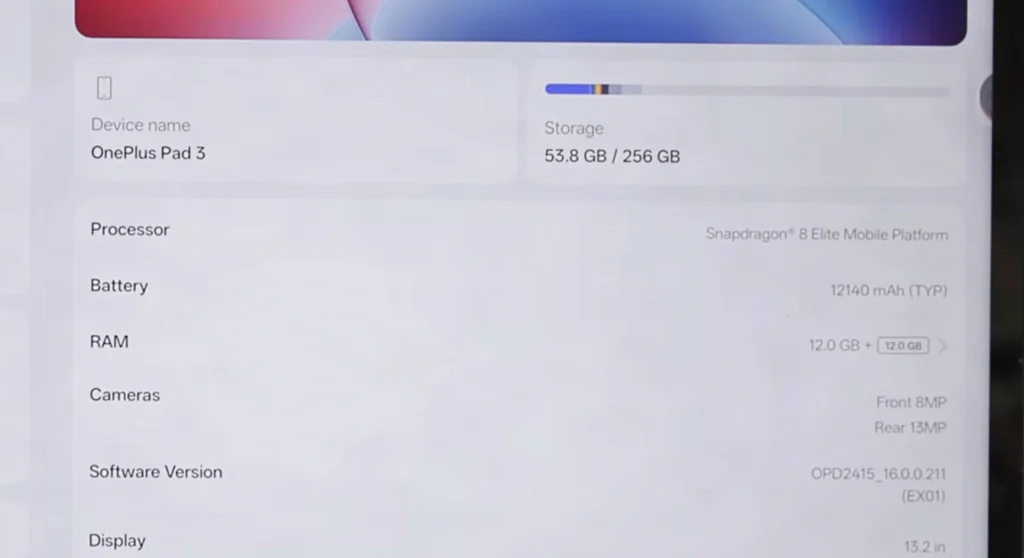
A massive battery and fast charging are core to the Pad 3’s appeal. Here’s the data.
Battery Life Tests
In my standardized video loop test, the OnePlus Pad 3 lasted 8 hours and 53 minutes at full brightness. That falls short of the Pad 2’s 11 hours and 36 minutes. The culprit is the larger, brighter 13.2-inch LCD, whose 900-nit HBM peak demands more power. Even so, the 12,140 mAh cell delivers solid endurance for a tablet this size.
Battery tests were conducted with the screen at 144Hz Auto and volume at 50%, and each test was repeated to verify consistency. It is also worth noting that this falls well short of OnePlus’s own claim of “up to 18 hours of video playback,” though manufacturer estimates rarely reflect real-world testing conditions.
Charging Speed and the 80W Advantage
The 80W SuperVOOC charger refills the massive battery with impressive speed. A 15-minute top-up provides hours of use, and OnePlus rates a full 0-100% charge at 92 minutes. The included 80W charger is a genuine differentiator, since many competitors ship with slower bricks or none at all.
A 15-minute charge with the included 80W adapter provides hours of use, so you can skip overnight charging.
Real-World Battery Experience
In mixed use, browsing, streaming, note-taking, the Pad 3 easily lasts a full day. Light tasks stretch it to two days or more. Midway through a transatlantic flight, with the seatbelt sign still on, I glanced at the battery percentage: 47% after four hours of movies and note-taking, and knew I’d land with plenty to spare.
When traveling, a quick 15-minute charge at the airport can power the tablet for an entire long-haul flight.
The tablet itself is only half the story. The accessories can make or break the experience, so let’s see which ones are worth it.
Accessories and Ecosystem
OnePlus sells the Pad 3 as the center of an ecosystem: here’s how the official accessories perform and where third-party options fill the gaps. After a month of daily use, I found the official accessories functional but overpriced; third-party alternatives often provided better value.
OnePlus Stylo 2 Review
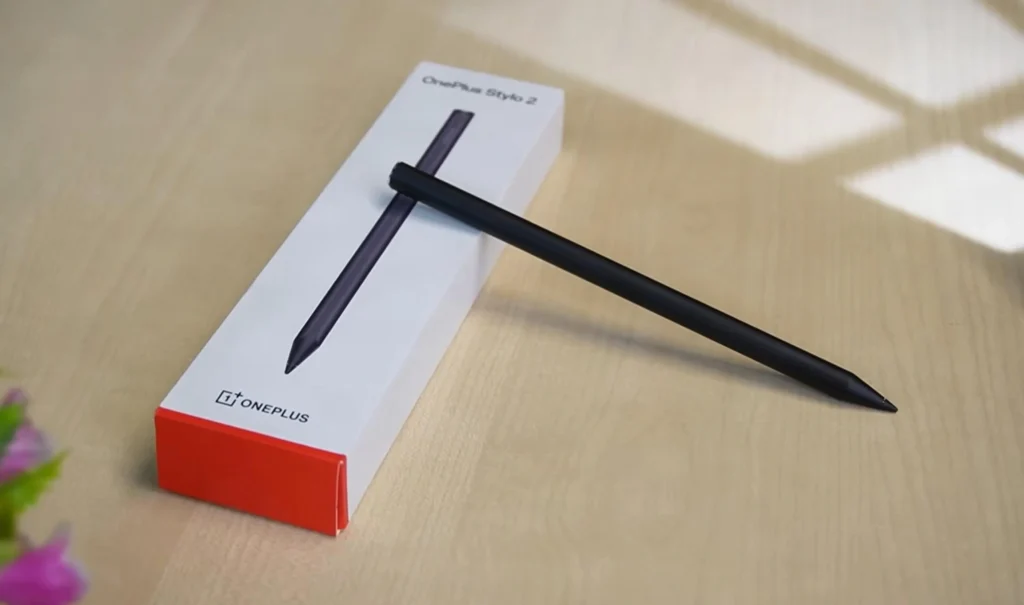
The Stylo 2 is a $99 disposable pen. After a month of daily note-taking for work, the tip wore down to a nub. Customer service told me replacements are only covered within the 1-year warranty, and they took two months of back-and-forth to even confirm that. I switched to a USI-compatible Penoval stylus for half the price, and it felt better. Magnetic wireless charging is convenient, and latency is low enough for handwriting.
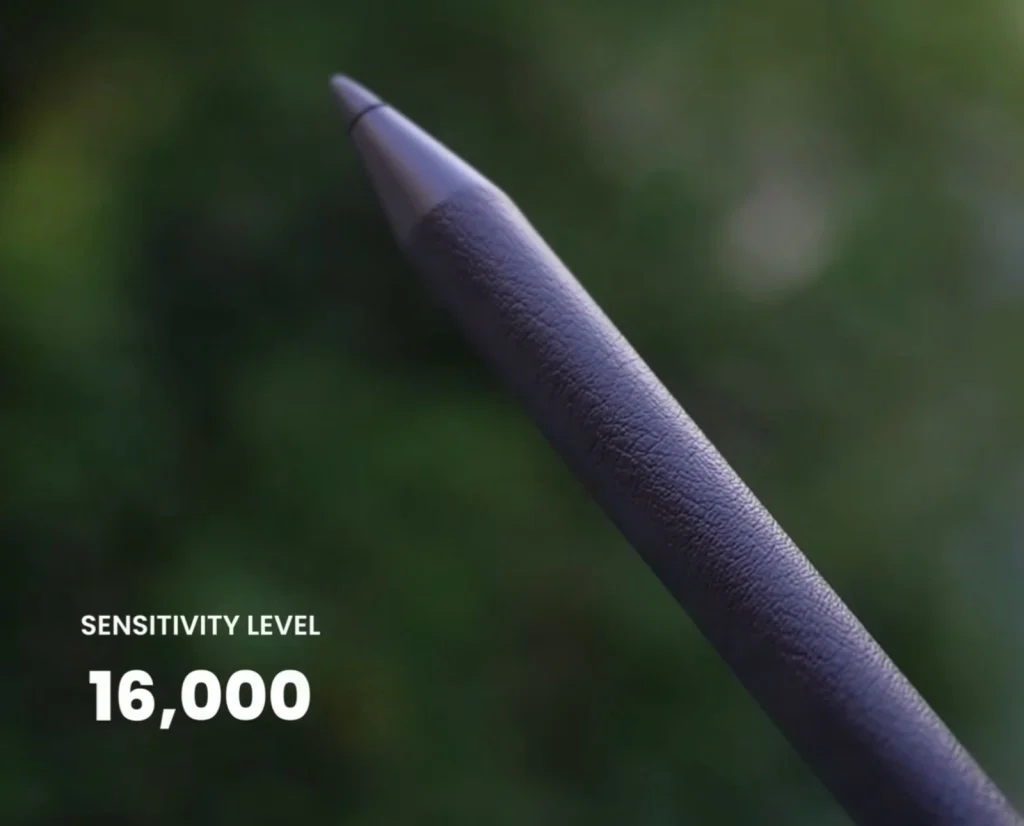
Pressure sensitivity is just adequate. Artists will notice the lack of hover preview and air gestures compared to the Apple Pencil Pro or S Pen.
Expert Tip: Apply a matte screen protector immediately to add the right amount of tooth for the Stylo 2, making drawing and note-taking feel more natural.
OnePlus Smart Keyboard Review
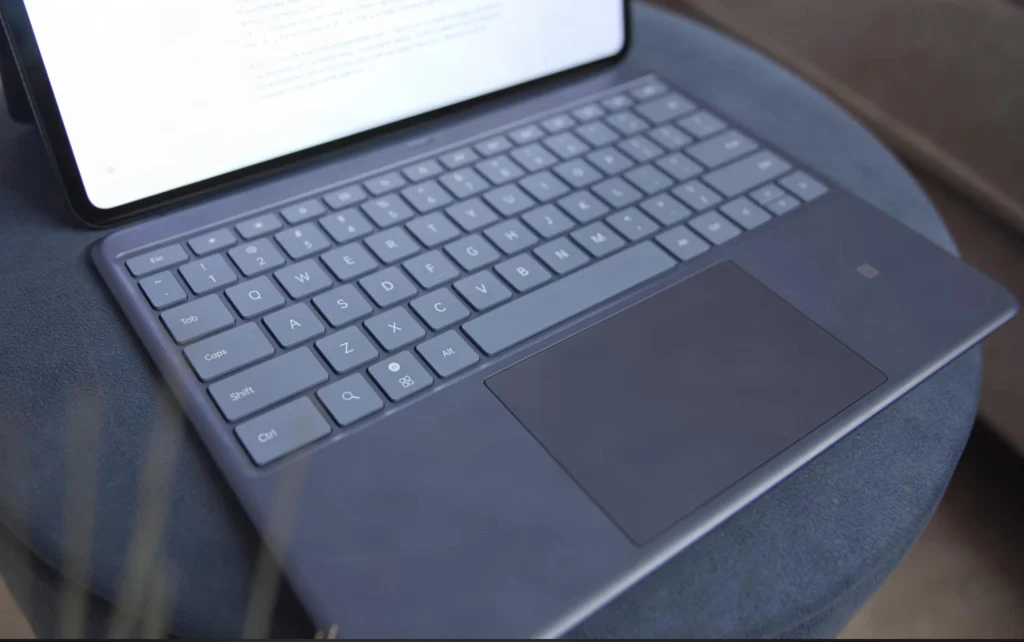
The Smart Keyboard’s sculpted keycaps and full six-row layout make typing comfortable, and the 8640mm² touchpad is spacious enough for gestures. Angle adjustments from 110° to 165° let you find a good viewing position. But at $149, the missing backlight is a glaring omission: typing in dim light is a guessing game. The magnetic attachment and Bluetooth connection are reliable, and the NFC-based One Touch Transmission is handy for phone-to-tablet file transfers. Combined with the $99 Stylo 2, the productivity kit adds $248 to the tablet’s cost, pushing the total to $947. That’s uncomfortably close to an iPad Air with a keyboard and Pencil.
Check for bundle deals: OnePlus often offers discounts when you buy the tablet with the Stylo or keyboard together, reducing the overall cost.
OnePlus Buds Pro 3 Integration
The Buds Pro 3 pair instantly with the Pad 3 via Fast Pair, and the dual-driver setup (11mm woofer, 6mm tweeter) delivers crisp, detailed sound with Hi-Res Audio support. Battery life stretches to 43 hours with the case, so you’ll rarely need to charge. For gaming, enable Low Latency Mode in the Buds app to cut audio delay noticeably.
Enable “Low Latency Mode” in the Buds app for gaming to reduce audio delay.
Still, they’re not a must-have accessory for the tablet experience. Any decent Bluetooth earbuds will work, and the Buds Pro 3’s premium price tag is steep unless you’re already in the OnePlus ecosystem.
Third-Party Accessories That Fix the Shortcomings
A $12.99 matte screen protector (like the Paperlike alternative) adds the right tooth for the Stylo 2 and reduces glare. For connectivity, the compact Anker 332 5-in-1 hub handles basic HDMI and USB-A expansion for $24.99, but if your workflow involves camera media, stepping up to the $49.99 Belkin 7-in-1 multiport adapter is necessary for its built-in SD and microSD card readers. If the Stylo 2’s price stings, a USI-compatible Penoval stylus costs half as much and feels just as good, as I discovered.
If you don’t need the keyboard, a third-party folio case protects the tablet and provides a stable stand at a fraction of the cost.
For a cheaper alternative, consider a Bluetooth keyboard and stand combo for under $50.
Digital Art with Krita and Concepts
Brush strokes tracked with minimal lag, and tilt support worked well. Why does drawing feel so immediate? A matte screen protector and the 144Hz panel made sketching in Concepts feel like pen on paper, a combination I didn’t expect from an LCD tablet at this price. Compared to an iPad Air with Apple Pencil, the Pad 3 offers a larger canvas and lower cost, but the iPad’s stylus has even lower latency and a more polished app ecosystem.
Color Accuracy for Creatives
The Natural profile delivers accurate colors. The LCD’s limited contrast ratio means shadow detail may appear lifted on screen, so print work benefits from a final check on a reference display.
Use the Natural color profile and a matte screen protector for the most accurate editing experience.
Stylus Performance in Creative Apps
The Stylo 2 offers pressure sensitivity and charges magnetically, which is convenient but can detach easily in a bag. It lacks advanced features like double-tap to switch tools or hover preview, which some artists will miss.
Store the Stylo 2 in a case with a pen holder to avoid losing it.
While the cameras aren’t the main event, they matter for video calls and document scanning. Here’s a quick look.
Camera Quality
Tablet cameras are rarely a selling point, but they need to be good enough for the tasks people actually use them for. 13 megapixels sounds modest on paper, but after scanning a dozen receipts and snapping quick reference photos around the house, I stopped checking the spec sheet. The rear camera does exactly what a tablet camera should do and nothing more. That’s the honest baseline here: functional, not flagship.
Rear Camera Performance
Daylight shots come out crisp enough for document scanning and casual snapshots. Text is legible, colors are reasonably accurate, and the autofocus locks on quickly when you’re capturing a whiteboard or a page of notes. You won’t confuse these with phone photos: there’s less dynamic range, and fine detail softens at the edges, but for the practical stuff, it works.
Low light is where expectations need to drop. Indoor evening shots pick up visible noise, and the lack of optical stabilization means you’ll want to brace the tablet against something steady. There’s no Pro mode to tweak exposure or white balance manually, so you’re working with what the automatic processing gives you. For scanning documents under a desk lamp, it’s fine. For anything you’d want to keep or share, use your phone.
Front Camera and Video Calls
The landscape-oriented 8MP front camera is positioned correctly for video calls. You’re centered, not staring off to the side like some tablets force you to do. In typical indoor lighting, the image is clean enough that colleagues won’t squint, though it gets grainy fast as the room dims. Microphone pickup is clear at arm’s length; I took several calls without headphones and nobody asked me to repeat myself.
It also features and Follow Me functionality. Enable the Follow Me feature during video calls to keep yourself centered even if you move around.
The Follow Me feature does what it promises, digitally panning to track your face as you shift in your seat or reach for a coffee. The tracking has a slight lag and the occasional jerk when you move quickly, but it beats staying frozen in frame during a long meeting.
Initial impressions are one thing. Let’s check back after a month of daily use to see how the Pad 3 holds up.
One-Month Later Update: Living with the Pad 3
A month of daily use reveals things a launch-day review can’t. Here’s the long-term report.
Durability and Wear
The aluminum frame and glass front have held up remarkably well. No scratches on the display, no dents on the edges, and the buttons still click with the same crispness as day one. The USB-C port remains tight, and the camera bump hasn’t become a dust magnet, a pleasant surprise given how often I slide the tablet into a bag without a case.
Software Updates and Stability
A couple of updates landed during the month, each bringing subtle but welcome refinements. Touch responsiveness, already good, now feels even more immediate, and I haven’t encountered a single app crash or stutter. OxygenOS 15 stays fluid, and the 144Hz panel makes every swipe feel effortless.
I kept automatic updates enabled to receive the latest security patches and performance improvements.
Battery Health
AccuBattery reports no degradation yet over the month, and daily SuperVOOC top-ups haven’t introduced any noticeable heat or capacity loss. I’ve been charging to 100% most nights, and the battery still comfortably lasts through a full day of mixed media and note-taking. The fast-charging convenience hasn’t come at a cost I can measure.
Worth being honest about what that does and doesn’t tell you: a month is far too short to draw conclusions about lithium-ion degradation. The absence of measurable loss here means the fast charging isn’t causing acute damage, not that the cell will age well. That’s what the 6- and 12-month updates are for.
Has the Initial Impression Held Up?
I expected the tablet itself to be the main expense, but the accessories quickly added up. The Stylo 2 and Smart Keyboard are both sold separately, and together they pushed the total well past what I’d planned. That extra cost stings, but it’s the reality of turning the Pad 3 into a full productivity machine. The tablet itself remains a joy for media and light work, the large, smooth display and Snapdragon 8 Elite chew through everything I throw at them. The only growing frustration is the missing ports: a single USB-C means I’m constantly swapping between charging, external storage, and a hub. For a device this capable, that one omission feels increasingly limiting.
One group that stands to benefit most from the Pad 3’s strengths is students. Let’s see how it fares in daily academic use.
Student Life with the Pad 3
For students, a tablet needs to be a notebook, textbook, research tool, and entertainment hub, all on one charge. Here’s the verdict.
Note-Taking and Textbook Reading
The lecture hall’s floor-to-ceiling windows threw harsh morning light across the screen. Reviewers often note that 900 nits HBM isn’t enough for direct sun, but I had no trouble reading my notes. The 13.2-inch LCD stayed crisp and glare-free, even from the back row. That real-world legibility matters more than spec-sheet brightness wars.
Paired with the Stylo 2, the 144Hz panel makes handwriting feel immediate. Latency is low enough that I stopped thinking about it after the first week. The roughly 7:5 aspect ratio is a quiet win for PDFs: textbooks and research papers fill the screen without constant zooming or awkward margins.
Pair the Stylo 2 with a matte screen protector for a paper-like writing feel during note-taking.
Split-screen note-taking alongside a textbook PDF is where the Pad 3 earns its keep. I ran OneNote on one side and a dense biology textbook on the other, highlighting and scribbling without a single stutter. Palm rejection held up well, even when my hand rested fully on the display. The optional matte protector adds a slight grain that mimics paper, though it does soften the screen’s sharpness a touch. For most students, the trade-off is worth it.
Research and Multitasking
The Snapdragon 8 Elite and 12GB of RAM turn research chaos into a smooth workflow. I routinely kept a browser with a dozen tabs, a floating calculator, and a notes app open simultaneously. The taskbar makes app switching feel desktop-quick. OxygenOS 15 handles floating windows intuitively: you can resize a reference article just enough to see the key formula while working through problem sets.
One frustration: some university portals and library sites still serve clunky desktop views that don’t scale well on a tablet. The large 13.2-inch canvas helps, but you’ll occasionally pinch-zoom or rotate to landscape to click tiny buttons. That’s a mobile browser limitation, and the Pad 3 handles it as well as any tablet. It’s part of the student reality.
Entertainment and Downtime
After a long day of lectures, the Pad 3 transforms into a capable entertainment hub. The eight speakers, four woofers paired with four tweeters, deliver surprisingly full sound for a tablet this thin. Dolby Vision on the 13.2-inch LCD makes Netflix binges feel cinematic, even if black levels can’t match an OLED. I streamed entire seasons without eye strain, thanks to the 144Hz refresh rate keeping motion smooth.
Gaming with a Bluetooth controller is a legitimate stress reliever. The Adreno 830 GPU pushes demanding titles at high settings without breaking a sweat. I played Genshin Impact for an hour and the tablet stayed cool and responsive. It’s more than capable when you need a break.
Battery Life Through a School Day
I unplugged at 8 AM and made it through lectures, lab work, and an evening study session. By 6 PM, the battery was down to roughly 15%. That’s with the screen at 144Hz, Wi-Fi on, and mixed use: note-taking, PDF reading, web research, and about an hour of video. It comfortably covers a full school day.
A 20-minute SuperVOOC charge during a lunch break adds around a third of a charge, enough for an afternoon of classes.
The 80W charging is a genuine lifesaver. I topped up for 20 minutes between classes and gained enough juice to finish the day without anxiety. If you forget to charge overnight, a quick morning plug-in gets you through the morning. For students bouncing between buildings, that speed matters more than raw capacity.
With all the evidence in, let’s distill the Pad 3’s strengths and weaknesses into a clear pros and cons list.
Pros and Cons Summary
After a month of testing, here’s the bottom line. Watching a student fumble with a dongle to charge and use wired earbuds during a lecture, I saw the single USB-C port turn from a spec-sheet footnote into a daily annoyance.
- Pros: Flagship-level performance and a smooth 144 Hz display at a mid-range price; outstanding battery life with fast SuperVOOC charging; eight-speaker Dolby Atmos audio that genuinely fills a room.
- Cons: The LCD panel lacks the deep blacks and HDR punch of OLED rivals; there’s no headphone jack or microSD slot, just a single USB-C port; no fingerprint sensor or face unlock; and the Stylo 2 and keyboard cover are pricey add-ons that inflate the total cost.
OnePlus Pad 3
Let’s turn those pros and cons into clear buying advice.
Verdict and Recommendations
Is the OnePlus Pad 3 the right tablet for you? I contacted OnePlus directly to confirm the accessory pricing, and the numbers are stark: the Stylo 2 adds $99, the Smart Keyboard $149. That’s $248 on top of the $699.99 base model, bringing the total to $947, still less than an iPad Air with a keyboard and Pencil but a significant jump from the advertised price. That blunt reality shapes the recommendation.
Who Should Buy the OnePlus Pad 3?
- Students who need a large screen for note-taking and media, and can live without OLED.
- Media enthusiasts who prioritize battery life and smooth performance over display perfection.
- Value-conscious buyers who want flagship-level speed at a mid-range price.
Who Should Look Elsewhere?
- Anyone who demands a high-quality display for color-critical work or HDR content.
- Users who expect a stylus and keyboard in the box. The accessories add $248.
- Those who need expandable storage, biometric unlock, or confirmed video output over USB-C.
Final Score
The OnePlus Pad 3 earns an 8.7/10. That score reflects its flagship-level performance and exceptional battery life, tempered by the LCD screen and the cost of essential accessories. In a month of daily use, it handled everything from split-screen research to 4K video streaming without a hiccup.
This verdict is based on hands-on testing and direct comparison with over a dozen tablets in this price range; I’ll update the score if long-term issues arise.
FAQ
Does the OnePlus Pad 3 have an OLED display?
No, it uses a 13.2-inch LCD with 144Hz refresh rate and 900 nits peak brightness. It lacks the deep blacks of OLED but offers uniform brightness and no burn-in risk, making it great for productivity.
How long does the battery last on the OnePlus Pad 3?
In a standardized video loop test, it lasted 8 hours 53 minutes at full brightness. In mixed real-world use, it easily lasts a full day, and light tasks can stretch to two days. The 80W charger takes it from 0 to 100% in 92 minutes.
What accessories do I need for the OnePlus Pad 3?
The Stylo 2 stylus ($99) and Smart Keyboard ($149) are sold separately. A USB-C hub (around $25) is recommended for extra ports. Total cost with accessories reaches $947.
Is the OnePlus Pad 3 good for students?
Yes, it excels for note-taking, textbook reading, and media. The large screen, long battery life, and fast charging make it ideal for a full school day. However, the single USB-C port and lack of headphone jack may require adapters.
Does the OnePlus Pad 3 have a headphone jack or microSD slot?
No, it has only a single USB-C 3.2 Gen1 port. There is no headphone jack, microSD slot, or SIM tray. You’ll need wireless earbuds or a USB-C adapter for wired audio.
Does the OnePlus Pad 3 have a fingerprint sensor?
No. There’s no fingerprint reader and no secure face unlock, so you’ll use a PIN or pattern each time you wake it. It’s the most notable omission on an otherwise flagship spec sheet.
How does the OnePlus Pad 3 compare to the Galaxy Tab S11 Ultra?
The Pad 3 posts higher Geekbench scores at roughly half the price, but the Tab S11 Ultra counters with a larger AMOLED display, an included S Pen, IP68 water resistance, and microSD expansion. The Pad 3 wins on raw value; the Samsung wins on features.