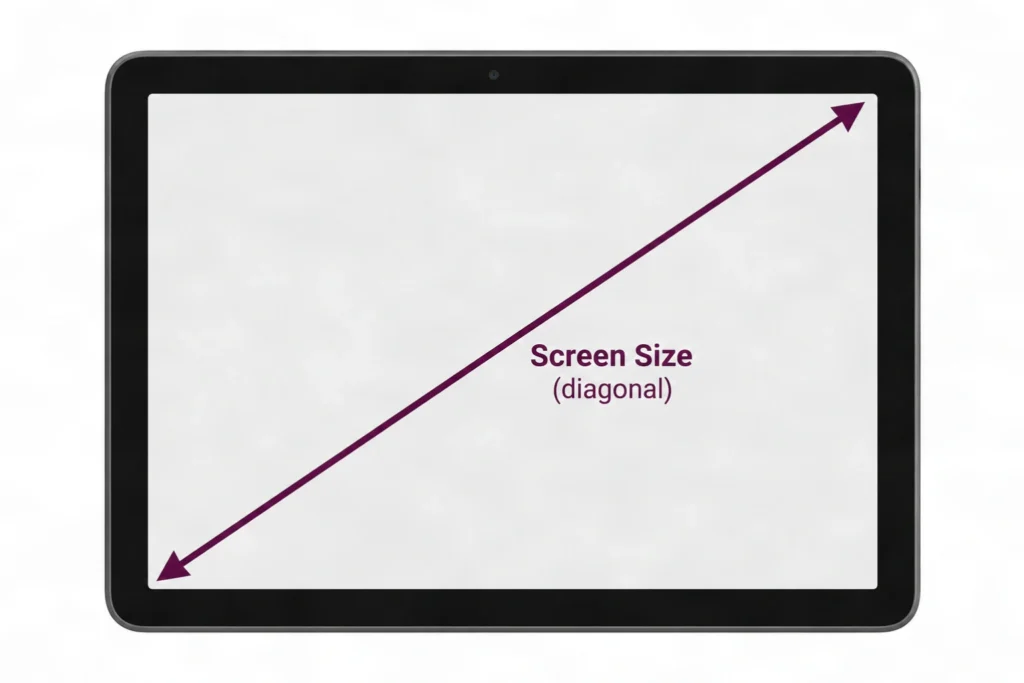
Screen size is the diagonal measurement of the viewable display area only, from one corner to the opposite corner, excluding the bezel.
Key Takeaways
- Screen size is always diagonal, corner-to-corner, excluding the bezel; measure the lit area only.
- A flexible tape measure is best; if you don’t have one, use string and a ruler.
- For rounded corners, extend the curve to an imaginary sharp point.
- Aspect ratio (4:3 vs 16:10) changes physical width and height dramatically: a 10.9-inch iPad can have more screen area than an 11-inch Android tablet.
- When in doubt, find your model number in Settings and look up the official spec on GSMArena.
Before you pick up a ruler, let’s clarify what ‘tablet screen size’ actually means: the industry definition isn’t what most people assume.
What “Tablet Screen Size” Actually Means
Before you pick up a ruler, let’s clarify what “tablet screen size” actually means, because the industry definition isn’t what most people assume.
The Diagonal Standard: Why It’s Always Corner‑to‑Corner
Screen size is the diagonal length of the lit display area, measured from one corner to the opposite corner. This standard comes straight from CRT television days, and the tablet world never changed it. You’ll always see it in inches, never centimeters, even on spec sheets outside the US.
Screen vs. Body: The Bezel Doesn’t Count
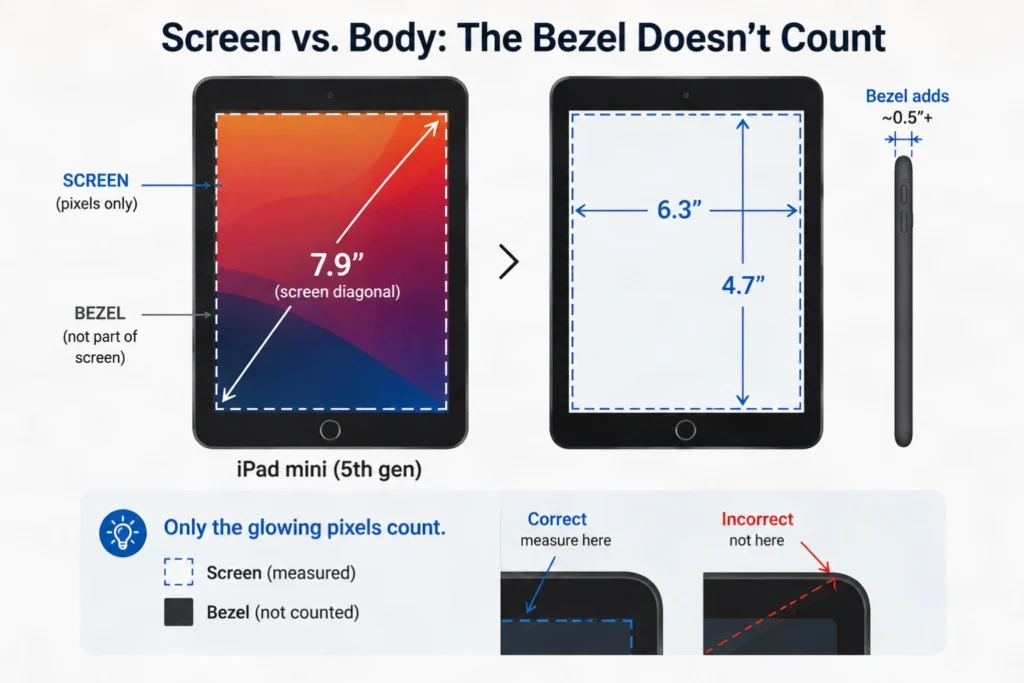
Only the glowing pixels count. The black border around them is the bezel, and it’s part of the tablet body, not the screen. Measuring bezel-to-bezel is the single most common mistake we see, and it leads to cases that are too big.
Take the iPad mini (5th gen). Its screen diagonal is 7.9 inches, but the actual lit area is only about 6.3 inches wide and 4.7 inches tall. The bezel adds another half-inch or more to the body, but it’s not part of the screen measurement.
A 7.9-inch tablet is never as big as you think. We’ve handed that exact iPad mini to friends who expected a much larger display because the marketing number sounds generous.
The screen itself is just 6.3 inches wide. The bezel makes the device feel bigger, but your case only cares about the body dimensions, not the screen diagonal.
Inches and Centimeters: The Conversion You Need to Know
One inch equals exactly 2.54 centimeters. If a spec sheet lists a 10.9-inch screen, multiply by 2.54 to get 27.7 cm. Use a calculator. Mental math leads to rounding errors that can matter when you’re comparing case cutouts.
| Screen Size (inches) | Screen Size (cm) |
|---|---|
| 7.9 | 20.1 |
| 8.3 | 21.1 |
| 10.2 | 25.9 |
| 10.9 | 27.7 |
| 11 | 27.9 |
| 12.9 | 32.8 |
Step‑by‑Step Measurement Guide (with Visual Descriptions)
Now that you know exactly what you’re measuring, let’s walk through the steps with whatever tool you have on hand.
Ever get a measurement that just looks wrong? The tell I spot most often is a diagonal that’s a half-inch too big. That happens when someone measures the glass edge instead of the lit screen. I once watched a reader return three cases before they realized the bezel was adding that extra bit.
The fix is to power on the tablet, look for the exact line where the lit display meets the black border, and measure only that. It’s the first thing I check when a measurement doesn’t match a known size.
Method 1: Using a Flexible Tape Measure (The Gold Standard)
- Power on the tablet so the lit screen is clearly visible against the bezel.
- Place the end of the tape at the exact corner where the lit display meets the black border. On a rounded corner, visually extend the straight edges to find the true corner point.
- Run the tape straight across the screen to the opposite corner, keeping it flat and taut.
- Read the measurement at the point where the lit display ends, not the glass edge.
- Note the measurement in inches (or centimeters, then convert: 1 inch = 2.54 cm).
- Repeat the measurement on the other diagonal (top-left to bottom-right, then top-right to bottom-left). The two numbers should match within a millimeter or two.
- If they differ, recheck your corner points. A mismatch usually means you’re catching the bezel on one side.
Always measure the visible display area only, start and end where the lit screen meets the black border, not the outer edge of the glass or the device body.
Method 2: Using a Rigid Ruler (And How to Handle Rounded Corners)
A standard ruler works fine if you handle the corners carefully. Align the ruler’s zero mark with one corner of the lit screen. Because the ruler is straight and the corner is rounded, you’ll need to estimate where the true corner would be.
A sticky note makes this precise. Place the note’s straight edge against the ruler, slide it until it touches the screen’s corner, and read the measurement at that point. Do the same on the opposite corner.
For tablets with rounded corners, use a sticky note to mark the exact corner point on the ruler for a sharper reference than the curved glass.
To avoid parallax error, position your eye directly above the ruler’s edge where it meets the screen. Looking from an angle can shift the reading by a few millimeters. Measure both diagonals to confirm.
Method 3: The String‑and‑Ruler Workaround (No Flexible Tape? No Problem)
Grab a piece of non-stretchy string, dental floss, or even a charging cable. Hold one end at a lit screen corner, run the string straight across to the opposite corner, and pinch the string exactly where the display ends. Then lay the string flat against a ruler and read the distance between your pinch point and the end. This method is surprisingly accurate as long as the string doesn’t stretch.
A piece of non‑stretchy string, dental floss, or even a charging cable can work.
Use non-stretchy string like cotton thread or dental floss, as stretchy materials like rubber bands will give a falsely short measurement.
Pro Tips for Accurate Measurement
How to Find Screen Size Without Measuring (The No‑Ruler Method)
No measuring tape? No problem. This section shows you how to find your screen size without touching a ruler.
Find Your Tablet’s Model Number (Settings > About Tablet)
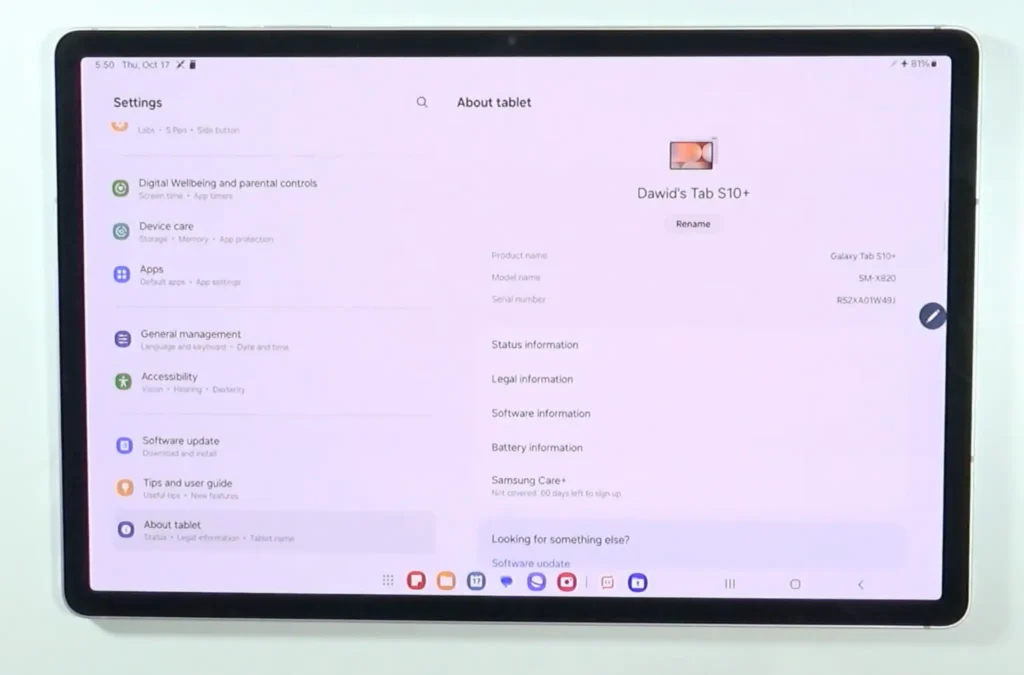
On Android, go to Settings > About tablet > Model number.
On an iPad, tap Settings > General > About > Model Name, then tap the model number to see the Axxxx identifier.
For Fire tablets, it’s Settings > Device Options > About Fire Tablet > Model number.
Look Up Official Specs Online (GSMArena, Manufacturer Sites)
Search the model number on GSMArena or Google. The spec page lists the diagonal screen size.
Screen sizes cited in this guide are verified against manufacturer specification pages (Apple, Samsung, Lenovo) and reputable databases like GSMArena.
Double-check your measurement by looking up the official specs using your tablet’s model number; if your measured number differs by more than 0.2 inches, re-measure—you likely included the bezel.
Use a Printable Measurement Template
I’ve created a downloadable PDF with pre-marked diagonal scales for common tablet sizes (7, 8, 10, 11, 12, 13 inches); just print, place your tablet, and read the size.
Print at 100% / Actual Size. Turn off “Fit to page,” it shrinks the page by 3–6%, which is enough to turn an 11-inch tablet into a 10-inch reading. Page 1 checks this for you against any bank card, so you’ll know immediately if your printer got it wrong.
Then tape pages 2 and 3 together along the marked line and lay your tablet face up in the red corner, top and left edges flush against the two red lines. The arc passing through the tablet’s bottom-right corner is its diagonal. That’s the body measurement. Subtract your bezel using the small table on page 3 to get the screen size manufacturers quote.
Prefer to skip the arithmetic? Cut out the ruler on page 1, measure the lit area of the screen directly, and read your diagonal off the chart on page 4.
Aspect Ratio Comparison Table: Diagonal vs. Actual Width × Height
| Diagonal Size (inches) | Aspect Ratio | Approx. Width (inches) | Approx. Height (inches) | Example Models |
|---|---|---|---|---|
| 7.9 | 4:3 | 6.3 | 4.7 | iPad mini (5th gen) |
| 8.7 | 16:10 | 7.4 | 4.6 | Samsung Galaxy Tab A7 Lite |
| 10.2 | 4:3 | 8.2 | 6.1 | iPad (9th gen) |
| 10.9 | 4:3 | 8.9 | 6.2 | iPad Air (5th gen) |
| 11.0 | 16:10 | 9.3 | 5.8 | Samsung Galaxy Tab S9 |
| 12.4 | 16:10 | 10.5 | 6.6 | Samsung Galaxy Tab S9+ |
| 12.9 | 4:3 | 10.3 | 7.8 | iPad Pro 12.9‑inch (6th gen) |
| 13.0 | 3:2 | 10.8 | 7.2 | Microsoft Surface Pro 9 |
Table of Common Tablet Sizes and Their Actual Body Dimensions
If your measurements land close to one of these, you can shop with confidence. The table below pulls official body dimensions from Apple, Samsung, and Amazon for the most common screen sizes. Screen size is the diagonal measurement; the viewable area can shift slightly by model because of bezel design.
But these body dimensions are what a case or stand actually needs to fit.
| Screen Size (inches) | Width (cm) | Width (inches) | Height (cm) | Height (inches) | Example Models |
|---|---|---|---|---|---|
| 7.0 | 11.76 | 4.63 | 18.07 | 7.11 | Amazon Fire 7 |
| 8.0 | 12.44 | 4.90 | 21.00 | 8.27 | Samsung Galaxy Tab A 8.0 |
| 9.7 | 16.95 | 6.67 | 24.00 | 9.45 | iPad (9.7-inch) |
| 10.1 | 14.94 | 5.88 | 24.52 | 9.65 | Samsung Galaxy Tab A 10.1 |
| 10.5 | 17.41 | 6.85 | 25.06 | 9.87 | iPad Air (10.5-inch) |
| 11.0 | 17.85 | 7.03 | 24.76 | 9.75 | iPad Pro 11-inch |
| 12.4 | 18.50 | 7.28 | 28.50 | 11.22 | Samsung Galaxy Tab S8+ |
| 12.9 | 21.49 | 8.46 | 28.06 | 11.05 | iPad Pro 12.9-inch |
The 12.9-inch iPad Pro is deceptively large, I learned that the hard way when I ordered a case that was too snug. I had measured the screen diagonal and assumed the body would be just a hair bigger, but the official specs on Apple’s site told a different story: 21.49 cm wide and 28.06 cm tall. That’s a full centimeter wider than I’d guessed, and it meant the case I’d bought was never going to fit. Now I always cross-reference the manufacturer’s published dimensions before I click “buy.” My iPad size comparison breaks down the exact dimensions and weight for every current iPad.
This is the table that matters if you’re buying a case for something on my best large tablets list. Note how little the screen diagonal tells you: the Galaxy Tab S11 Ultra and the Surface Pro 11 are within 4 cm of each other in height, but one is 5.1 mm thick and the other is nearly double that.
| Tablet | Screen | Height (cm) | Height (in) | Width (cm) | Width (in) | Thickness | Weight |
|---|---|---|---|---|---|---|---|
| Samsung Galaxy Tab S11 Ultra | 14.6″ | 32.63 | 12.85 | 20.85 | 8.21 | 5.1 mm | 692 g |
| OnePlus Pad 3 | 13.2″ | 28.96 | 11.40 | 20.97 | 8.26 | 5.97 mm | 675 g |
| Microsoft Surface Pro 11 | 13″ | 28.70 | 11.30 | 20.80 | 8.19 | 9.3 mm | 895 g |
| Apple iPad Pro 13-inch (M5) | 13″ | 28.16 | 11.09 | 21.55 | 8.48 | 5.1 mm | 579 g |
| Lenovo Tab P12 Pro | 12.6″ | 28.56 | 11.24 | 18.45 | 7.26 | 5.6 mm | 565 g |
Two things worth noticing in that table. The iPad Pro is the widest tablet here at 21.55 cm despite having one of the smaller screens, because of its 4:3-ish aspect ratio. And the Surface Pro 11 is 9.3 mm thick against the iPad Pro’s 5.1 mm — nearly double. A stand rated for one may not close on the other, which is precisely why thickness belongs in every measurement you take.
For extra peace of mind, double-check against the manufacturer’s official specs.
Troubleshooting and Common Mistakes
Even with perfect technique, mistakes happen. This section tackles the most common measurement errors and how to fix them.
I’d already printed the return label when I realized the case didn’t fit. I’d measured the whole device, not just the screen, and ended up with a 12.4-inch measurement for a 10-inch tablet. That mistake cost us a week of waiting and a restocking fee.
“My Measurement Is 10.3 Inches, Is That Right?”
Standard tablet screen sizes are round numbers: 9.7, 10.2, 10.9, 11, 12.9. An odd measurement like 10.3 inches almost always means the bezel snuck into your ruler’s path or the ruler wasn’t perfectly diagonal. Re-measure with the string method: it follows the screen’s curve and ignores the bezel, giving you the true diagonal.
“I Measured the Whole Device, Not Just the Screen”
This is the #1 mistake. A ‘10-inch’ tablet body can easily measure over 12 inches corner to corner. If your number is way above what you expected, you measured the device, not the display. Go back to the step-by-step guide and measure only the lit screen area, from one display corner to the opposite.
“I Used a Metal Ruler and Scratched My Screen”
Metal rulers and glass screens don’t mix. Even a light drag can leave a hairline scratch. Use a paper ruler, a plastic one, or a soft measuring tape. If you already have a minor scratch, a screen protector can hide it and prevent more damage.
“The Inches‑to‑Centimeters Conversion Tripped Me Up”
A 25 cm measurement is not a 25-inch screen. Divide centimeters by 2.54: 25 cm ÷ 2.54 ≈ 9.8 inches. Bookmark that formula: it’s the difference between ordering the right case and a return.
Frequently Asked Questions
You’ve got the methods and the fixes. Here are quick answers to the questions readers ask most.
Do I measure the whole tablet or just the screen?
Just the lit display area. Screen size is the diagonal from one corner of the screen to the opposite corner, excluding the black bezel. The whole device is always larger.
Why can’t I include the bezel?
The bezel is part of the body, not the display. Including it gives you a number that matches no case or spec sheet. Measure only the glowing rectangle.
How do I measure for a case?
You need two things: the screen diagonal (so you buy the right model) and the full device dimensions (height, width, thickness). Cases are molded to the body, not the screen.
What about rounded corners?
Measure as if the corners were square. Extend your ruler or string to where the sharp corner would be. That’s the diagonal the manufacturer uses.
Where do I find my tablet’s model number?
Check Settings > About Tablet, or look on the back of the device in tiny print. I’ve lost count of the readers who saved a return by typing that model number into a case finder instead of guessing from memory. It’s the safest shortcut.
Can I use a piece of string?
Yes. Hold one end at a corner, pull the string taut to the opposite corner, mark the length, then measure the string against a ruler. It works for any screen.
What if I don’t have a ruler?
Use a standard sheet of paper. A US letter page is 11 inches tall; A4 is 29.7 cm. Align the tablet’s diagonal with the paper’s edge and estimate the difference.
My measurement doesn’t match the advertised size. Why?
You likely measured the body or included the bezel. Recheck that you’re measuring only the screen, corner to corner. A small discrepancy is normal due to rounding.
How do I convert inches to centimeters?
Multiply inches by 2.54. A 10.5-inch screen is about 26.7 cm. Most spec sheets list both, but a quick mental conversion helps when shopping internationally.
Does aspect ratio affect case fit?
Yes. Two tablets with the same diagonal can have different widths and heights. A 4:3 screen is squarer; a 16:10 is wider. Always match the exact model.
Quick‑Reference Measurement Cheat Sheet
Before you go, grab this cheat sheet: it’s everything you need in one screenshot-friendly table.
| Step | What to Do | Pro Tip |
|---|---|---|
| 1 | Identify the display area | The lit part. If it doesn’t glow, it’s bezel. |
| 2 | Measure diagonally | Use a ruler or string; go corner to corner of the screen only. |
| 3 | Handle rounded corners | Imagine the screen had sharp corners and measure to that point. |
| 4 | Convert to inches | Divide cm by 2.54; most cases list inches. |
| 5 | Verify with model number | Check Settings > About Tablet or the back of the device. |
| 6 | For cases, use model number | Model number is more reliable than measurement alone. |
Screenshot this table and you’ll never second-guess a case order again.
Conclusion: Measure Twice, Buy Once
You’re now equipped to measure any tablet screen with confidence. Let’s wrap this up.
Measure diagonally, corner to corner. The bezel is body, not screen. I measure dozens of tablets a month, and I still check the model number every time. That final step turns a good measurement into a perfect fit. Aspect ratio shapes how the tablet feels in your hand, not just the diagonal inches. Bookmark this guide for your next case or screen protector purchase.
If you’re looking for a 12-inch+ tablet, my best large tablets guide covers everything I’ve tested.

Dan has personally tested more than 50 large tablets since 2021, living with each one as his only computer for at least two weeks before writing a word.
Dan Mercer
Founder & Lead Reviewer, Large-Tablet.com
Experience
I review large tablets — 12 inches and up — and I try to answer one honest question: is this really worth your $1,000-plus? Since 2021 I’ve tested more than 50 tablets from Apple, Samsung, Lenovo, Microsoft, OnePlus, Xiaomi and others. Between 2021 and 2023 I worked as an independent mobile device consultant, repairing and configuring Android and Apple hardware for hundreds of people.