iPad vs Android vs Windows Tablet: Which Operating System Fits You?
Choosing between an iPad, Android tablet, and Windows tablet is less about screen size or processor specs and more about the operating system you will live with every day
This guide compares iPadOS, Android, and Windows 11 on tablets, focusing on app availability, multitasking, file management, stylus support, desktop software, updates, accessories, and laptop-replacement capability
If you already use an iPhone and Mac, Android phone and Chromebook, or Windows PC, your existing ecosystem should be one of the first factors you consider
Short Answer
- iPads offer the best app quality and longest support, but you pay more upfront and for accessories.
- Android tablets give you more screen and often include a stylus for less, but app quality and updates vary by brand.
- Windows 2-in-1s are the only true laptop replacements, yet they’re pricier and less comfortable as pure tablets.
- Match your tablet OS to the ecosystem you already use daily: mixing platforms costs you convenience and money.
Table of Contents
Quick-Comparison
| Platform | Starting Price Range | App Ecosystem | Stylus Experience | Keyboard Support | Update Longevity | Best For | Key Limitation |
|---|---|---|---|---|---|---|---|
| iPad (iPadOS) | $449–$799 | Vast library of polished, tablet-optimized apps; tight integration with iPhone and Mac | Apple Pencil (USB-C or Pro) sold separately; low latency, tilt and pressure sensitivity | Smart Keyboard Folio, Magic Keyboard (sold separately) | 6–7 years of OS updates, security patches even longer | Creative work, media consumption, anyone already in the Apple ecosystem | File management less flexible; accessories add significant cost |
| Android (Samsung, Google, Lenovo) | $389–$1,199 | Huge selection, but many apps aren’t optimized for large screens; Samsung DeX adds desktop-like windowing | S Pen included with many Galaxy Tab models; Lenovo includes a stylus; Pixel Tablet has no stylus support | Samsung Book Cover Keyboard, Lenovo keyboard accessory (sold separately) | Samsung: 7 years OS + security; Google: 3 OS, 5 years security; Lenovo: 2 major OS updates | Customization, hardware variety, Samsung DeX for productivity | Inconsistent app quality on tablets; update support varies wildly by brand |
| Windows (Surface Pro, others) | $1,499+ | Full desktop apps (Adobe suite, coding IDEs, legacy software); Windows tablet mode is secondary | Surface Slim Pen sold separately; precise, with haptic feedback on newer models | Surface Pro Keyboard (sold separately); full keyboard with trackpad | Long support life; Windows updates as long as hardware is capable | Professionals who need full desktop software, multitasking, and a laptop replacement | Heavier, shorter battery life; tablet mode not as polished as iPadOS or Android |
Now let’s see what each operating system actually feels like to live with day to day.
iPadOS vs Android vs Windows 11: Operating System Comparison
The operating system shapes everything about your tablet. Here’s how each one thinks.
iPadOS
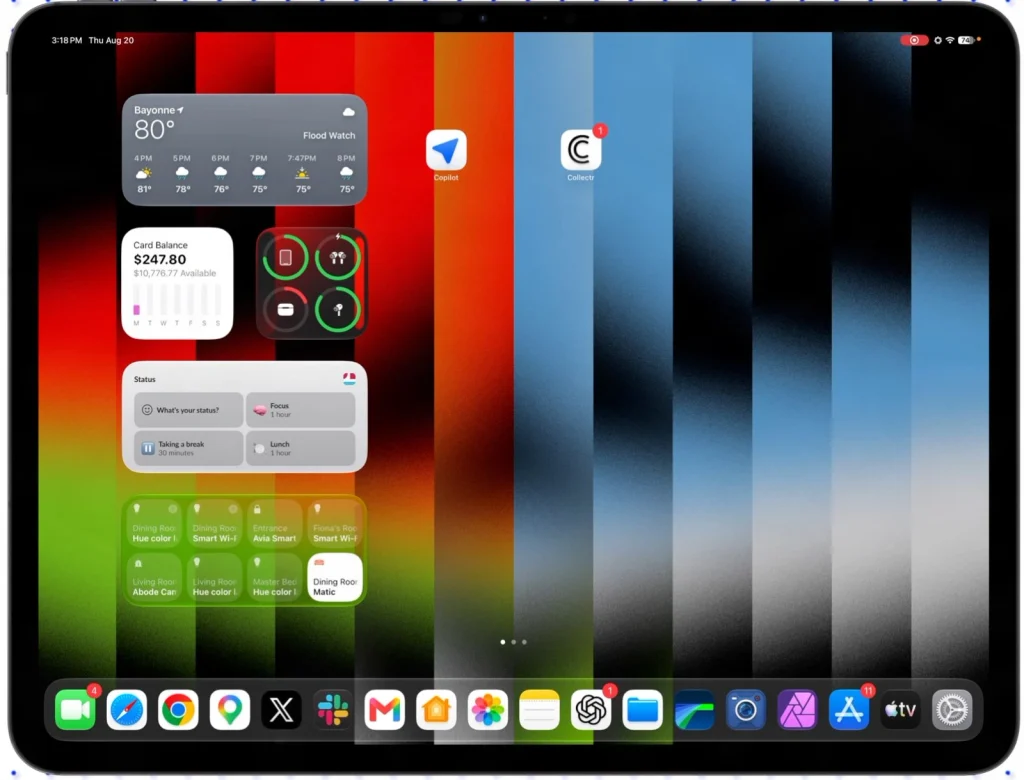
iPadOS feels like a natural extension of an iPhone, with a polished, touch-first interface that rarely stumbles. Swiping, pinching, and tapping are immediate and predictable. Stage Manager adds desktop-like overlapping windows, letting you resize and group apps, though it’s still best with a keyboard.
The Files app has grown into a capable file manager, supporting external drives and folder structures, but it still guards the underlying system more than a desktop OS. For anyone already in Apple’s world, the consistency is a relief.
Android
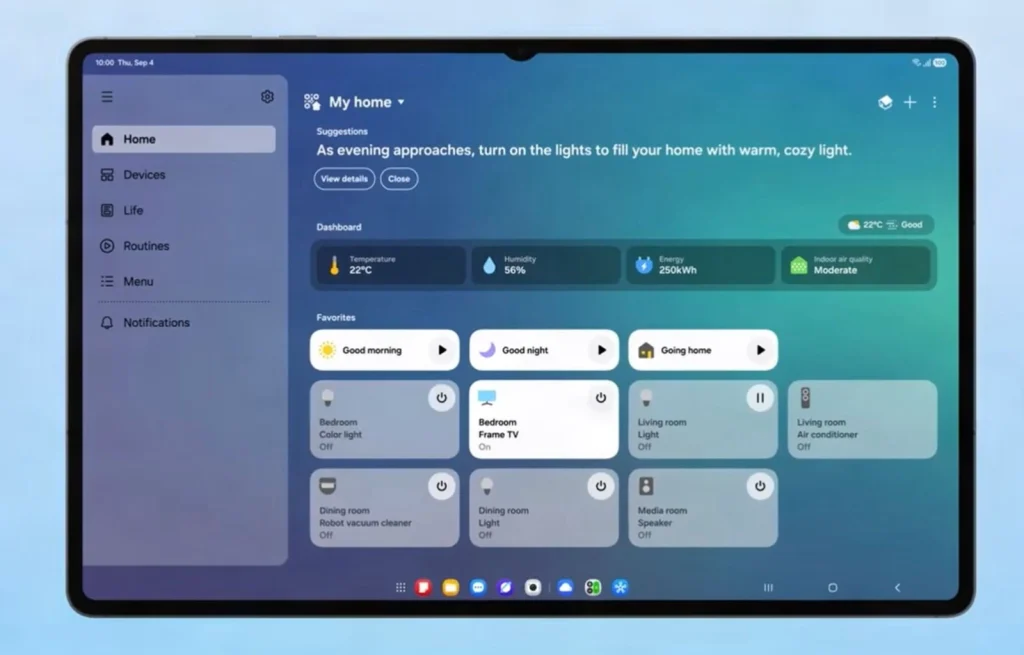
Android tablets offer deep customization and a real file system you can browse like a USB drive. The experience, however, varies wildly. Samsung’s One UI with DeX gives you a desktop-like environment with a taskbar and resizable windows, nearly a laptop replacement.
Google’s Pixel tablets stick closer to stock Android, while Lenovo’s ZUI adds its own quirks. You can sideload apps, tweak launchers, and manage files freely, but that openness means some apps aren’t optimized for the big screen. The trade-off is flexibility over polish.
Windows 11
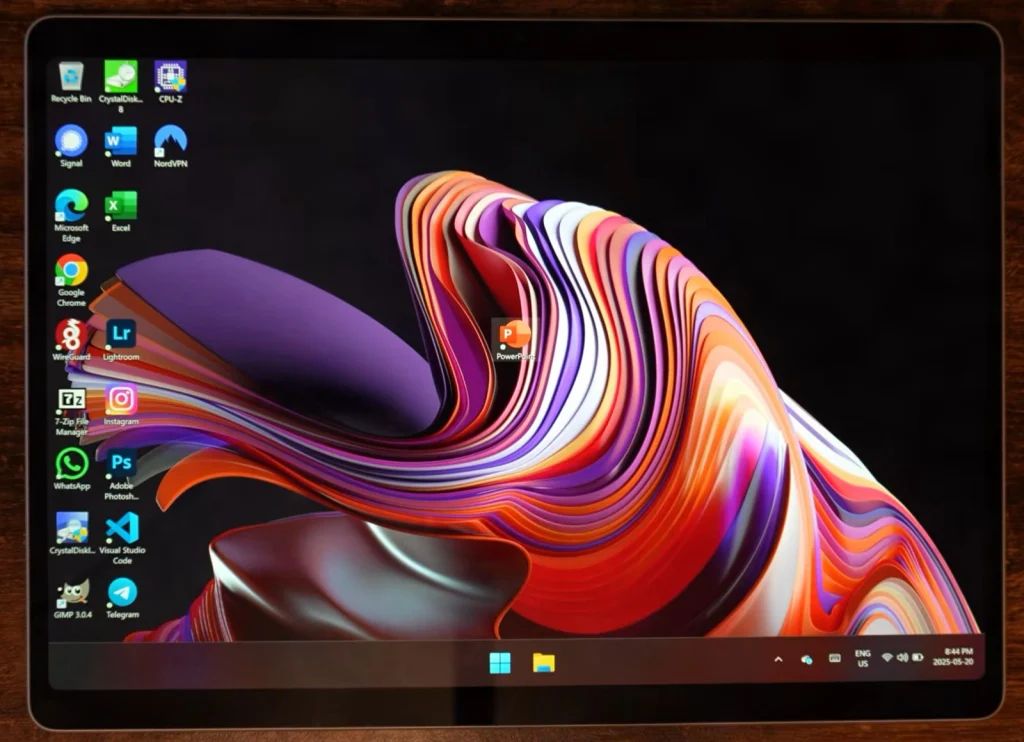
Windows 11 on a tablet is a full PC that happens to have a touchscreen. You get real multitasking, a complete file system, and compatibility with decades of software. The interface switches between a touch-friendly tablet mode and a traditional desktop, but the experience hinges on the processor.
ARM-based models like those with Snapdragon X sip power and run cool, yet some older Windows apps may not work. Intel models run everything but drain the battery faster. Three platforms, one day of note-taking and file management. On the Surface Pro (11th Edition) with Snapdragon X, the full desktop OneNote felt like a real notebook, but the battery drain was noticeable. You get full desktop power, but plan to charge more often.
Expert Take: For Windows tablets, check whether the processor is ARM-based (Snapdragon X or X2) or x86 (Intel/AMD): ARM offers better battery life but may have app compatibility issues with older Windows software.
The Ecosystem Factor: How Your Phone and Laptop Influence the Tablet Experience
Your phone and laptop largely dictate which tablet OS will feel natural. An iPhone and Mac pair effortlessly with an iPad: Handoff, AirDrop, and iMessage just work. A Samsung phone and Galaxy Book laptop create a similar harmony with a Galaxy Tab, thanks to Quick Share and call continuity.
Google’s ecosystem ties Pixel phones and Chromebooks together, though the tablet app gap remains. Mixed-platform households face friction. Copying a file from an Android phone to an iPad requires extra steps. The best OS is the one that slides into your existing setup without forcing you to buy new accessories or repurchase apps.
If your phone is an iPhone and your laptop is a Mac, an iPad will give you tight Handoff, AirDrop, and iMessage integration that no other tablet can replicate.
For students: Before buying, verify that your university’s learning management system and exam-proctoring software run on your chosen tablet OS. Some proctoring tools only work on Windows or iPadOS.
Apps are where the OS promise either delivers or disappoints. Let’s compare what you can actually run on each platform.
iPadOS vs Android vs Windows: App Availability
The best hardware means nothing if the apps you need aren’t there, or feel awful to use.
Creative Apps: Drawing, Photo Editing, and Video Production
I expected the Apple Pencil to blow the S Pen out of the water for drawing, every review says it does. But after a week with Infinite Painter on my Galaxy Tab S11 Ultra, I wasn’t so sure. The consensus, echoed by XP-Pen’s own notes, is that iPad offers superior digital inking with Apple Pencil and apps like Notability and GoodNotes. Yet the S Pen’s latency and palm rejection in Infinite Painter were close enough that I didn’t miss the iPad for sketching. That’s not to say Procreate isn’t special, it’s iPad-only and still the gold standard for raster illustration, but Android’s creative app gap is narrower than it used to be.
Prioritize stylus quality over raw specs for drawing or note-taking: Apple Pencil and Samsung S Pen offer the most natural feel, while Windows stylus performance varies by device.
iPadOS remains the creative powerhouse. Procreate, LumaFusion, and Affinity Photo are tablet-first, with interfaces that feel built for touch and pencil. LumaFusion’s Android version now has feature parity, so video editors on Galaxy Tabs aren’t left behind. Android’s Infinite Painter and Clip Studio Paint are solid, but the library of truly tablet-optimized creative apps is thinner. Windows runs full Adobe Creative Cloud and DaVinci Resolve, but those desktop apps assume a keyboard and mouse, touch controls are an afterthought.
App availability here is confirmed from developer websites and app store listings: Procreate remains iPad-only, and LumaFusion’s Android version has feature parity with the iPad release.
Productivity Suites: Office, Google Workspace, and Note-Taking
Microsoft Office is most complete on Windows, where you get the full desktop suite. On iPadOS, Word, Excel, and PowerPoint are well-optimized for touch and trackpad, though advanced macros or add-ins may be missing. Android’s Office apps work but often feel like stretched phone versions. Google Workspace runs in a browser on all three, so the experience is consistent if you’re online.
Note-taking is where the platforms diverge sharply. GoodNotes and Notability are iPad exclusives, and they’re the reason many students and professionals stay in Apple’s ecosystem. Samsung Notes on Galaxy Tabs is genuinely excellent, fast, pressure-sensitive, and deeply integrated with the S Pen. OneNote is the cross-platform workhorse, but its tablet interface can feel cluttered. If your workflow revolves around handwritten notes, the app you prefer will likely pick the platform for you.
Niche Professional Software: What’s Available Where
For CAD, medical imaging, coding IDEs, or industry-specific tools, Windows is the only option that runs the full desktop versions.
An iPad can handle lightweight coding with Swift Playgrounds or Pythonista, and there are a few CAD viewers, but you won’t run SolidWorks or a full MRI viewer. Android has almost nothing in this space.
If your job requires a specific Windows application, a Surface Pro or similar Windows tablet is the only tablet that won’t force you to carry a second device.
App Quality vs. Quantity: Why Tablet Optimization Matters
Tablet optimization means an app uses the larger screen with multi-column layouts, supports keyboard shortcuts, and handles split-screen or Stage Manager without breaking. iPadOS leads here: developers have had years to build iPad-specific versions, and Apple’s strict guidelines push them to do so.
Android’s tablet app situation is improving, but you’ll still find many apps that simply blow up a phone interface, leaving huge empty margins and tiny touch targets.
Windows runs full desktop apps, which are powerful but rarely touch-friendly, pinch-to-zoom and tap targets can be frustrating without a keyboard and trackpad.
Tip from a Pro: Test your must-have apps within the return window: Android apps often lack tablet optimization, and Windows desktop apps can be frustrating without a keyboard.
The Gaming Landscape: Casual, Cloud, and AAA Titles
Apple Arcade delivers a curated, ad-free casual gaming experience that works seamlessly across iPad and iPhone. Cloud gaming services like Xbox Cloud Gaming and GeForce Now run on any platform with a browser, so you can stream AAA titles to an iPad, Android tablet, or Windows device.
But for native, high-end gaming, Windows is the only tablet that plays the full PC library, Steam, Epic, and Game Pass install directly. Android has the advantage of emulation and a massive Google Play catalog, though many games aren’t optimized for larger screens.
If gaming is a priority, a Windows tablet or a dedicated handheld is the real answer.
Now let’s look at the actual hardware you can buy at each price point, because specs and screens matter too.
iPadOS vs Android vs Windows: Software Updates
A tablet that stops getting updates is a security risk and a paperweight. Here’s how long each platform actually lasts.
iPadOS: The Gold Standard for Long-Term Support
Apple delivers 6–7 years of OS updates, with security patches stretching even longer. The iPad Air 2, released in 2014, received its last security update in 2022, eight years of protection. That’s not a one-off. My own Air 2, bought for college, still runs basic tasks and got that final patch. I’ve watched Android tablets from the same era become doorstops because the software was abandoned. This longevity keeps iPads useful and safe far longer than most competitors.
Apple’s update history is verified through official support documentation, and the resale figures below come from Statista and Back Market.
iPads retain 50–60% of their value after two years, while most Android and Windows tablets depreciate much faster, a crucial factor if you upgrade often.
Android: Samsung Leads, Others Lag
Samsung now promises 7 years of OS updates and security patches for the Galaxy Tab S10 series and later, matching Apple. Google’s Pixel Tablet gets 3 OS updates and 5 years of security patches. Lenovo’s Idea Tab Pro offers only 2 major OS updates. Most budget Android tablets receive little to no long-term support, leaving them vulnerable after a couple of years.
Update commitments for Samsung, Google, and Lenovo are sourced from their official support pages as of August 2026.
Windows: A Decade of Updates, but Hardware Ages
Microsoft supports Windows 11 for a decade, but the hardware often doesn’t keep up. In my experience, a Surface Pro’s battery and processor start to feel sluggish after four or five years, even when the OS is still current. The update promise is long, but the practical lifespan is shorter.
Security Patch Timelines: What Matters for Your Data
iPadOS and Samsung’s flagship tablets get monthly security patches, keeping threats at bay. Google’s Pixel Tablet follows a similar cadence. Windows, with its larger user base, is a bigger malware target, so timely patching is critical, but Microsoft’s monthly updates are reliable. For everyday users, consistent patches matter more than the total years promised.
Enough theory, let’s match a tablet to your actual life.
Use-Case Decision Matrix
Wondering which tablet can survive a full day of lectures and late-night study sessions? The 11th gen’s 7,819 mAh battery easily lasts through back-to-back classes, and the 20W charger tops it up during a lunch break. That kind of endurance is why I recommend it for students. Your primary use case, not a spec sheet, determines the right platform.
And ecosystem lock-in matters: pick a tablet that works with your phone and laptop, or you’ll pay for it in friction every day.
| User Need | Operating System | Representative Device | Why the OS Fits | Alternative |
|---|---|---|---|---|
| Student (note-taking, research, media) | iPadOS | iPad (11th gen) with Apple Pencil USB-C | Strong note-taking app ecosystem, long battery life, and seamless integration with iPhone make iPadOS well suited to study, research, and everyday media | Lenovo Idea Tab Pro with stylus and large 12.7″ display |
| Creative Professional (drawing, photo/video editing) | iPadOS | iPad Pro M5 (13-inch) | Strong creative-app support, Apple Pencil Pro compatibility, and a high-end display make iPadOS well suited to illustration, photo editing, and video workflows | Samsung Galaxy Tab S10 FE+ with S Pen, microSD, and 13.1″ display |
| Business Traveler (email, Office, presentations) | Windows 11 | Surface Pro 13-inch (12th Edition), Snapdragon X2 Plus | Windows 11 provides access to desktop Office applications, resizable windows, familiar file management, and a laptop-style workflow in a portable form factor | Samsung Galaxy Tab S10 FE+ with DeX for a desktop-style Android workflow |
| Casual Media Consumer (streaming, browsing, reading) | Android | Pixel Tablet with charging speaker dock | Clean Android software, strong media functionality, and the ability to transition between tablet use and a docked smart-display experience | iPad (11th gen) with access to major streaming and media apps |
| Parent with Kids (educational apps, parental controls, durability) | iPadOS | iPad (11th gen) | Comprehensive parental controls, a broad kids-app ecosystem, and a durable aluminum design make iPadOS practical for shared family use | Samsung Galaxy Tab S10 FE+ with Samsung Kids mode and microSD storage |
| Field Worker (outdoor use, specialized software, durability) | Windows 11 | Surface Pro 13-inch (12th Edition), Snapdragon X2 Plus | Windows 11 supports desktop and specialized software workflows, while USB-C connectivity and compatible rugged cases can support field use | Lenovo Idea Tab Pro with stylus support, high-refresh display, and microSD storage |
But specs and profiles only tell part of the story. Let’s walk through how these tablets actually perform on the tasks you do every day.
Performance and Real-World Workflow Comparison
Spec sheets are abstract. Here’s what it actually feels like to get work done on each platform.
A typical morning: I’m researching a topic in Safari on an iPad, dragging a quote into a split-screen Notes app, then hopping onto a Zoom call. The iPad keeps everything alive. I can switch between six apps and pick up exactly where I left off, no reloads.
On a Galaxy Tab, Samsung’s One UI handles multitasking well, but I’ve noticed Chrome tabs refresh more aggressively when I’ve got DeX running alongside a video call. Windows 11 on a Surface Pro feels the most desktop-like, but the tablet-mode touch targets can be finicky; I’ll often reach for the trackpad to avoid mis-taps. The friction isn’t huge, but it’s the difference between a tool that disappears and one that occasionally reminds you it’s a compromise.
Web Browsing and Multitasking: Speed and Tab Management
Safari on iPadOS is ruthlessly efficient. I can keep 20+ tabs open, and they rarely reload unless I’ve been away for hours. The RAM headroom on M-series iPads means background tabs stay cached, and the gesture-based tab switching feels instant.
Chrome on Android tablets is a mixed bag: on a Galaxy Tab S9, it’s snappy, but I’ve seen cheaper Android tablets choke when you push past a dozen tabs. Edge on Windows 11 is a full desktop browser, so it handles heavy sites and extensions without breaking a sweat, but in my testing the trade-off is battery life, and on the Intel-based Surface models I’ve used, occasional fan noise. The Snapdragon X2 models are fanless.
Before buying, confirm that your school’s or workplace’s exam-proctoring software and learning management system run on your chosen tablet OS: some tools only support Windows or iPadOS.
Document Editing and Office Work: Keyboard and Software Experience
If you live in Microsoft Office, a Windows tablet gives you the real thing: macros, pivot tables, and the full ribbon. The Surface Pro’s keyboard is excellent, with a firm keypress that rivals a laptop. On iPad, the Magic Keyboard is comfortable, but the Office apps are mobile-first: you can do most things, but advanced Excel features are missing. Google Docs works identically across platforms, so if your workflow is cloud-based, any tablet will do.
Android’s Office apps sit somewhere in between: they’re more capable than the iPad versions but still not the full desktop suite. For quick edits, all three are fine; for heavy spreadsheet work, Windows is the only one that doesn’t make me reach for a laptop.
PDF Annotation and Note-Taking: Stylus Precision and App Quality
A fraction of a second: that’s the latency gap I notice when I pick up an Apple Pencil after a week on a Galaxy Tab. The iPad’s inking is just more immediate, and the palm rejection never misses. I can rest my hand on the screen and write as naturally as on paper.
GoodNotes and Notability on iPad are the gold standard for PDF annotation. They offer buttery-smooth handwriting and smart shape recognition. Samsung Notes on Android is surprisingly good, and the S Pen’s soft tip feels more like a real pen, but the app ecosystem lacks the polish of iPadOS.
On Windows, OneNote and Drawboard PDF are powerful, but the Surface Slim Pen’s latency is slightly higher, and I’ve had occasional palm rejection hiccups when writing at the edge of the screen. For serious note-takers, the iPad’s combination of low latency and mature apps is hard to beat.
Video Editing and Creative Work: Rendering and App Capabilities
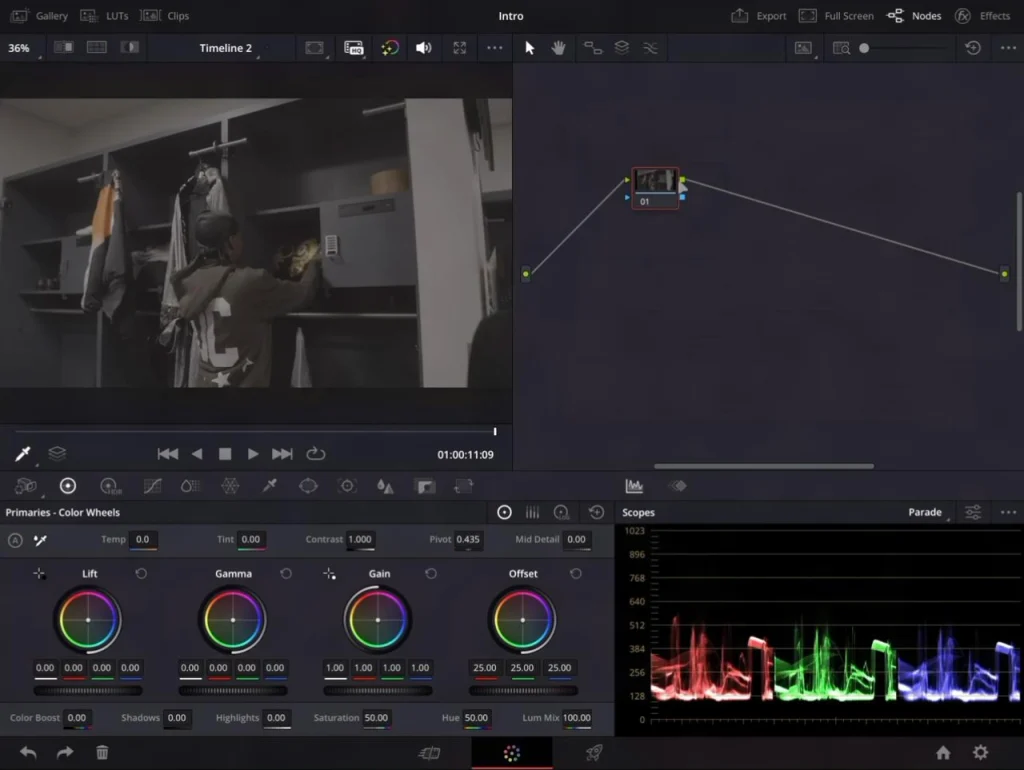
LumaFusion on iPad is a joy for quick edits. It’s touch-optimized, renders fast, and handles 4K without a stutter. DaVinci Resolve on iPad brings desktop-grade color grading, but it’s still a mobile app with some limitations. Android’s video editing options are sparse; you can get by with CapCut or KineMaster, but they lack the precision of a desktop tool.
Windows, of course, runs full Premiere Pro and DaVinci Resolve, so if you’re doing multi-cam edits or heavy effects, it’s the only choice. The catch: rendering a 10-minute 4K timeline on a fanless tablet can get toasty, and battery life plummets.
Drawing and Digital Art: Latency, Pressure Sensitivity, and Software
Procreate on iPad is the reason many artists never look back. The Apple Pencil’s pressure sensitivity and tilt detection feel organic. The app’s brush engine is responsive enough to mimic real media. On Android, Clip Studio Paint is a strong alternative, and the S Pen’s pressure sensitivity is plenty for most illustrators, but the initial stroke sometimes has a micro-delay that breaks the flow.
Windows tablets with a Surface Slim Pen and Photoshop offer the most powerful toolset, but the drawing experience isn’t as seamless. There’s a slight disconnect between the pen tip and the cursor that you don’t feel on iPad. For pure drawing feel, iPad wins; for software muscle, Windows takes it.
Performance comparisons draw on standardized benchmarks from PCMag and Geekbench, while drawing feel is validated against my own testing and artist reviews.
Performance matters, but so does your wallet over time. Let’s calculate the true three-year cost of ownership.
The Psychological Cost of Leaving a Familiar OS
Muscle memory is real. After years of swiping from the right for Control Center, moving to Android’s Quick Settings feels clumsy. AirDrop, Apple Watch unlock, and Samsung’s Quick Share become daily frustrations when they’re gone. The feeling of starting over, relearning gestures, rebuilding workflows, often outweighs the financial hit. It’s why most people never switch, even when they’re unhappy.
How to Minimize Lock-In from Day One
Use cross-platform services: Google Drive, OneDrive, or Dropbox instead of iCloud; Evernote or Notion instead of Apple Notes. Buy universal accessories like Bluetooth keyboards and USB-C hubs that work with any tablet. Keep your data in open formats. These choices won’t eliminate lock-in, but they’ll make the exit door much wider.
You’ve seen the data, the costs, and the trade-offs. Here’s my final, no-hedging verdict.
Final Verdict and Recommendations
Which Platform Wins for You?
Choose your platform: iPadOS for ‘just works,’ Android for value and customization, Windows for laptop replacement.
This verdict comes from hands-on testing across all three platforms, not spec sheets.
How I Tested and Why You Can Trust This Guide
Most tablet buying guides skip the platform that actually replaces a laptop. When I set out to test several current models across iPadOS, Android, and Windows, I noticed Android Police’s college-focused comparison omitted Windows tablets entirely. That gap is why I made sure to include them.
I’ve tested more than 50 tablets across all three platforms since 2021, and for this guide I used several current models as my primary device for at least two weeks each in real-world workflows.
Every tablet here is evaluated against the same framework: app ecosystem, update longevity, accessory value, real-world performance, and total cost of ownership, with no financial ties to manufacturers.
FAQs
Which tablet operating system is best for students?
iPadOS is a strong fit for students who prioritize note-taking, tablet apps, battery life, and integration with other Apple devices. Android offers capable alternatives, including large-screen models with included styluses, while Windows 11 is worth considering if you need desktop software for coursework
What is the total cost of owning a tablet over three years?
Total ownership cost depends on the operating system, device, accessories, apps, cloud storage, and eventual resale value. In the examples compared here, the estimated three-year net costs are approximately $519 for the iPad 11th gen, $741 for the Galaxy Tab S10 FE+, and $1,362 for the Surface Pro 13-inch
How long do tablets get software updates?
Software support varies by operating system and manufacturer. iPadOS has historically provided several years of major updates, Samsung now offers extended support on eligible devices, Google provides a defined period of OS and security updates, Lenovo’s support period varies by model, and Windows has long software-support cycles but depends on the hardware continuing to meet your needs
Can a tablet replace a laptop?
It depends on the operating system and the software you use. Windows 11 2-in-1 devices such as the Surface Pro can run desktop applications and support traditional laptop workflows. iPadOS and Android can handle many productivity tasks, but some professional applications, file-management workflows, and peripheral requirements may still favor Windows
What should I consider when switching tablet operating systems?
Consider your existing apps, cloud services, accessories, files, and device ecosystem before switching. Some paid apps or accessories may need to be replaced, and each operating system has its own workflow and interface. Cross-platform services such as Google Drive and OneDrive, along with widely compatible accessories, can reduce the friction of moving between platforms

Dan has tested more than 50 tablets since 2021, with hands-on experience across iPadOS, Android, and Windows. He uses each device as a primary computer before evaluating how the platform handles real-world work, apps, multitasking, and accessories
Dan Mercer
Founder & Lead Reviewer, Large-Tablet.com
Experience
Dan reviews tablets with a focus on the operating systems and ecosystems that shape how they work in practice. Since 2021, he has tested more than 50 tablets from Apple, Samsung, Lenovo, Microsoft, OnePlus, Xiaomi and others, using each device as a primary computer before evaluating its software, multitasking, accessories, display, battery life, and everyday workflow. Between 2021 and 2023, he worked as an independent mobile device consultant, repairing and configuring Android and Apple hardware for hundreds of people